Track your volleyball performance by viewing all your recorded matches in one place. Your match history provides a complete record of every game you've played, including detailed statistics and performance data.
Accessing Your Match History
To view your match history:
- From your player dashboard, select the season you want to review
- Click on the Matches tab in the navigation
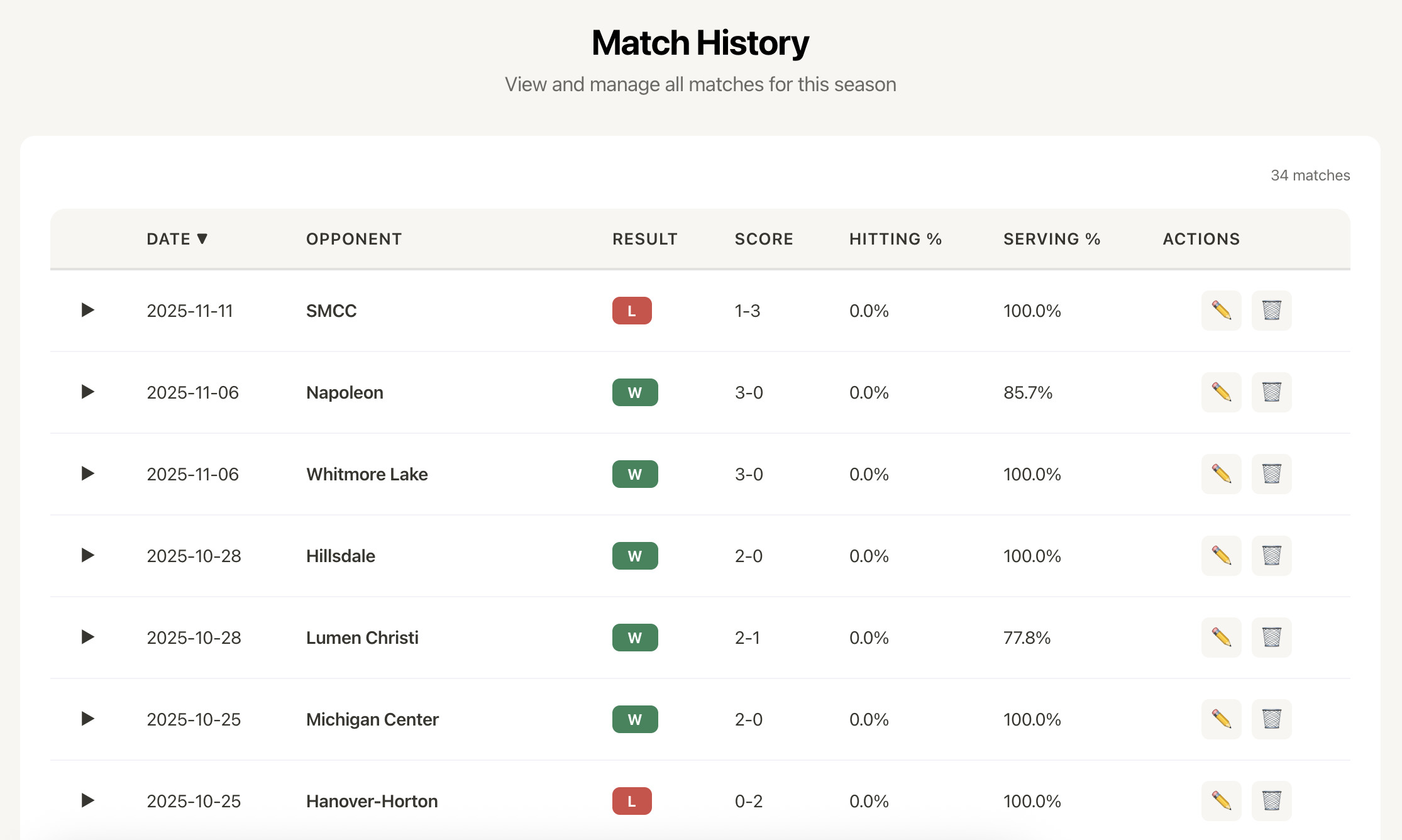
- Your match history will display in a table format
Understanding the Match History Table
Your match history displays all recorded matches in an easy-to-read table format with the following columns:
- Expand Button (▶) - Click to view detailed statistics for that match
- Date - When the match was played (sortable)
- Opponent - The team you played against
- Result - Win (W) or Loss (L) indicator
- Score - The final set score count
- Hitting % - Hitting percentage for entire match
- Serving % - Serving percentage for entire match
- Actions - Edit and delete buttons
Sorting Your Matches
Matches are sorted by date by default, with the most recent matches appearing first. To change the sort order:
- Click on the Date column header
- An arrow symbol (▲ or ▼) shows the current sort direction
- Click again to reverse the sort order
- ▼ shows newest first, ▲ shows oldest first
Viewing Detailed Match Statistics
Each match contains your complete performance data. To view the details:
- Find the match you want to review
- Click the Expand Button (▶) in the first column
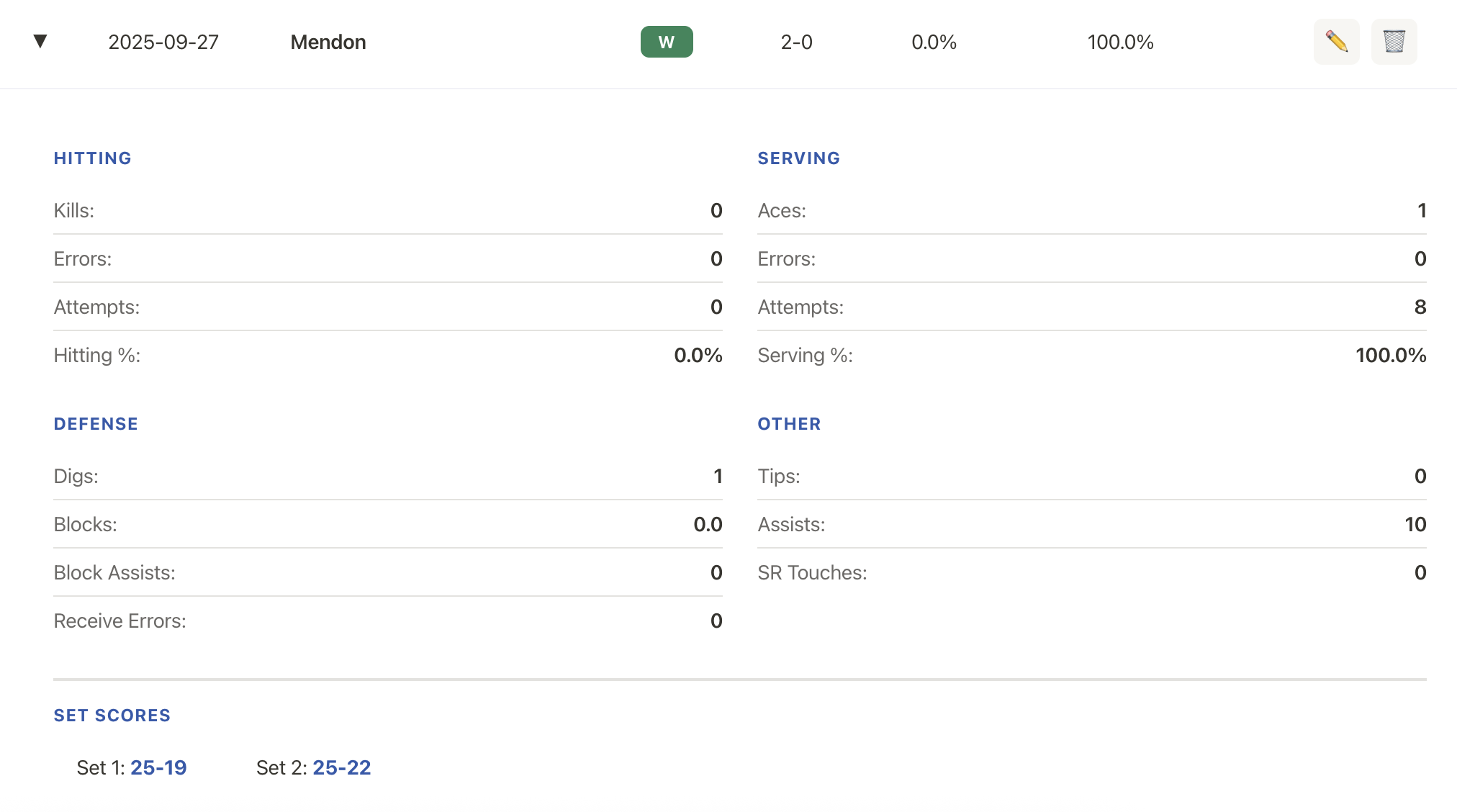
- The row expands to show all your statistics for that match
- Click the button again (now showing ▼) to collapse the details
Statistics Available
When you expand a match, you'll see all the stats that were recorded for you, including:
Offensive Stats
- Kills - Successful attacks that score points
- Hitting Errors - Attack attempts that result in errors
- Hits in Play - Attacks that stay in play but don't result in kills
- Tips - Soft attacks over the block
- Assists - Sets that lead to kills
Serving Stats
- Aces - Serves that directly score points
- Serve Attempts - Total number of serves
- Service Errors - Serving mistakes
Defensive Stats
- Digs - Successful defensive plays
- Dig Errors - Defensive mistakes
- SR Touches - Serve receive touches
Blocking Stats
- Blocks - Successful blocks
- Block Assist - Assisted blocks
- Block Touch - Touches on blocks
- Block Errors - Blocking mistakes
Only statistics with values greater than 0 will be displayed.
Editing a Match
If you need to update match information or correct statistics:
- Find the match in your history
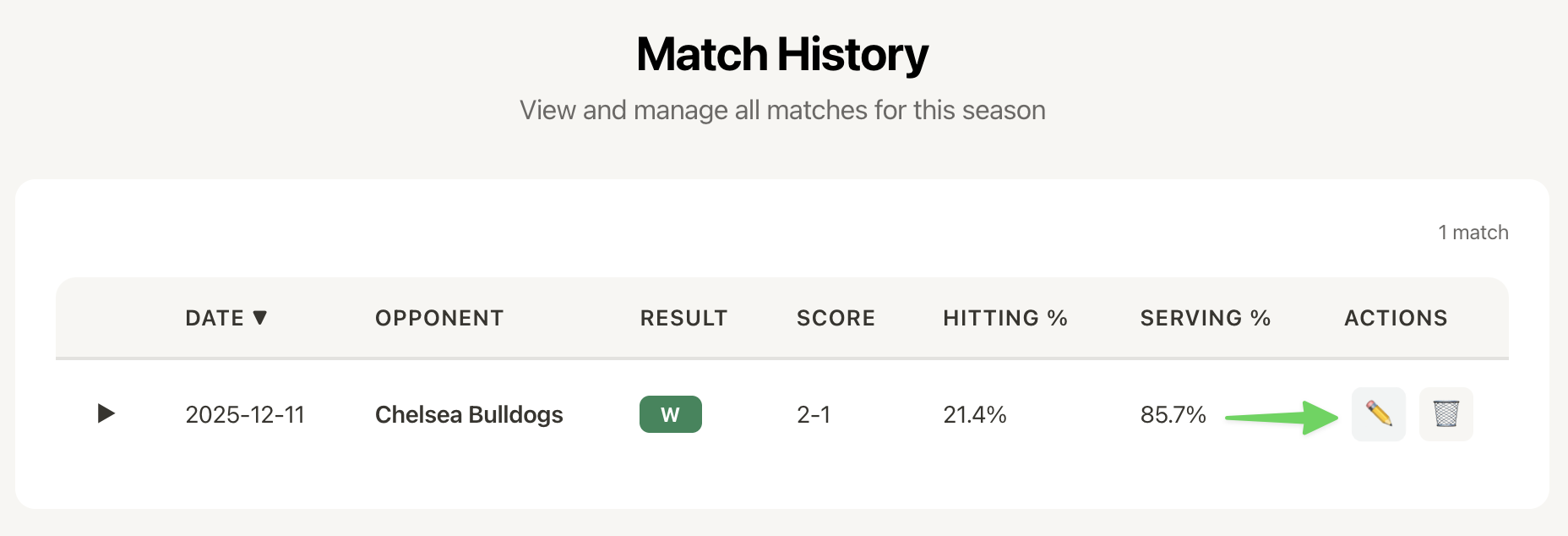
- Click the Edit button (✏️) in the Actions column
- You'll be taken to the Record Match screen with all data pre-filled
- Make any changes you need:
- Match date
- Opponent name
- Set scores
- Your statistics
- Match notes
- Click Save Match to update your record
Tip: When editing a match, all existing data is preserved. Only the fields you modify will be updated.
Deleting a Match
If you need to remove a match from your history:
- Locate the match you want to delete
- Click the Delete button (🗑️) in the Actions column
- A confirmation dialog will appear
- Review the match details to ensure you're deleting the correct match
- Click Confirm to permanently remove the match
- Click Cancel if you change your mind
Warning: Deleting a match is permanent and cannot be undone. All statistics for that match will be removed from your season totals.
Empty Match History
If you haven't recorded any matches yet for the selected season, you'll see a message encouraging you to record your first match. Click the Record Match button from your season detail page to get started.
Win/Loss Indicators
Each match is automatically marked as a win or loss based on the set scores:
- Green "W" - You won more sets than the opponent
- Red "L" - The opponent won more sets
This is calculated automatically when you record or edit match scores.
Viewing Match Notes
If you added notes when recording a match, you can view them by expanding the match row. Notes appear below your statistics and can provide context about your performance, what worked well, or areas to improve.
Mobile View
On mobile devices, match history displays in an optimized card format instead of a table. Each card shows:
- Match date and opponent
- Final score and result
- Expand button to view full statistics
- Edit and delete buttons
All functionality remains the same, just optimized for smaller screens.
Navigating Between Seasons
To view match history for different seasons:
- Use the season selector in your navigation
- Select the season you want to view
- Click on the Matches tab
- You'll see all matches for that specific season
Each season maintains its own separate match history and statistics.
Troubleshooting
I don't see a match I recorded
- Verify you're viewing the correct season
- Check your internet connection if you recorded it recently
- Try refreshing the page
- If recorded offline, check the sync status to ensure data has synced
Statistics appear incorrect
- Use the edit function to review and correct any mistakes
- Verify all stats were entered correctly when the match was recorded
- Check that the correct player and season were selected
Can I export my match history?
You can export individual match history, by clicking "Edit" next to the match, and the Export CSV button at the bottom of the Record Match area. For analyzing performance over time, use the Trend Analysis feature which provides visual charts and insights based on your match history.
Pro Tip: Expand multiple matches to compare your performance across different games. This can help you identify patterns and track improvement over the season.