The Reports feature in VBall Stats allows coaches to generate comprehensive, print-friendly report cards for their players. This guide will walk you through selecting a season, choosing players, and generating reports.
What Reports Are Available?
VBall Stats offers three types of reports for coaches:
- Player Report Cards - Individual stat summaries for selected players
- Player Progress Reports - Match-by-match analysis showing improvement over time
- Team Comparison Reports - Side-by-side comparison with sortable stats and heat map visualization
Step 1: Access the Reports Page
From your Coach Dashboard, click the Reports button. This will take you to the Reports page where you can generate different types of analytics for your team.
Desktop View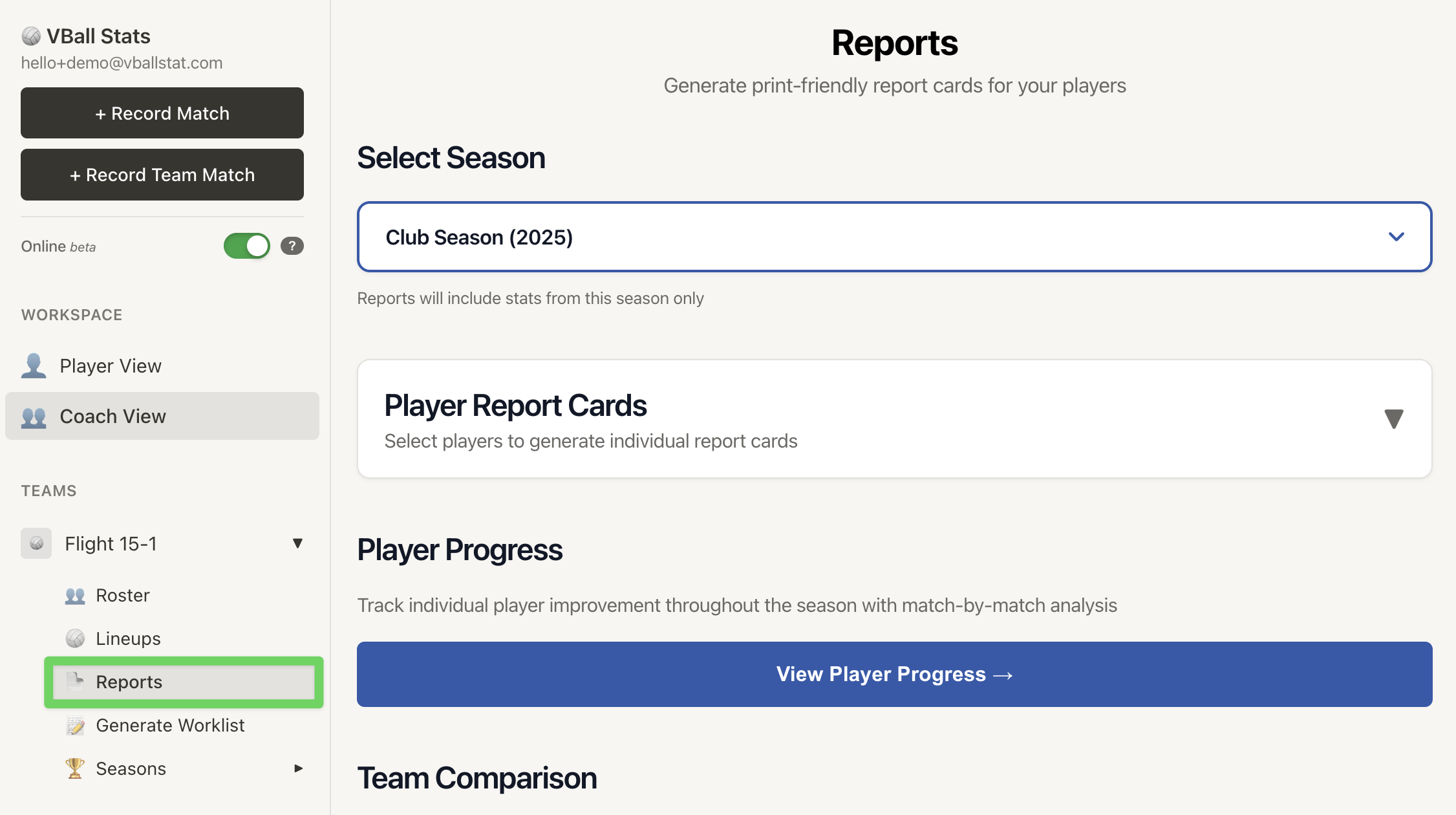 |
Mobile View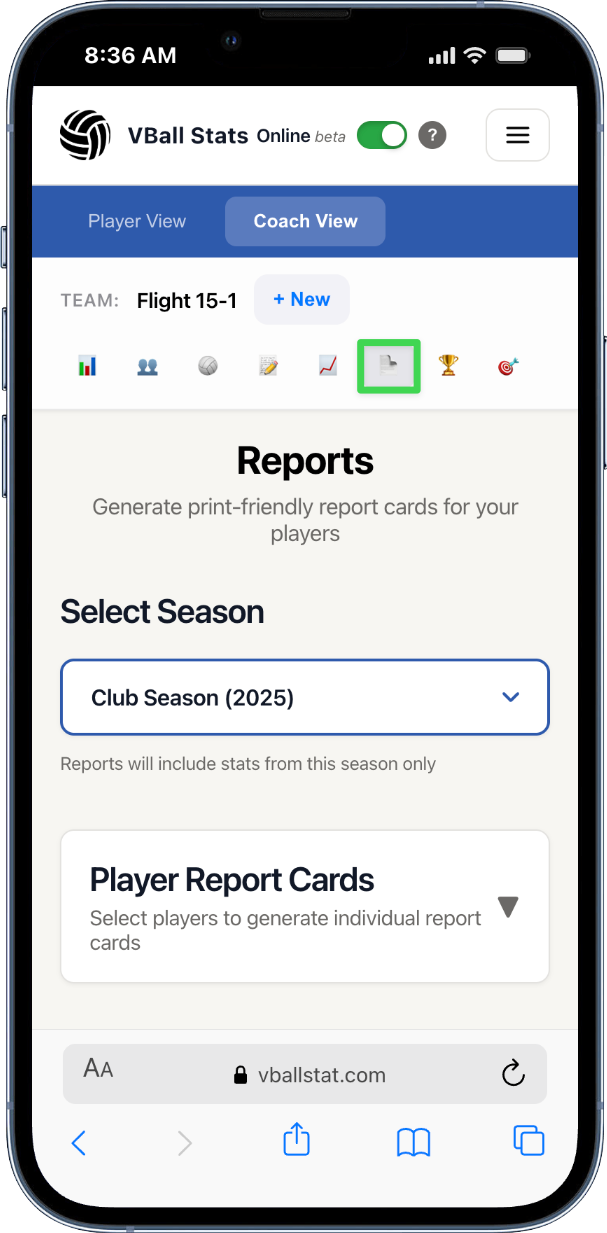 |
Step 2: Select a Season
Before generating reports, you need to select which season's data you want to analyze:
- Click on the Select Season dropdown at the top of the page
- Choose the season you want to report on from the list
- Reports will include stats from this season only
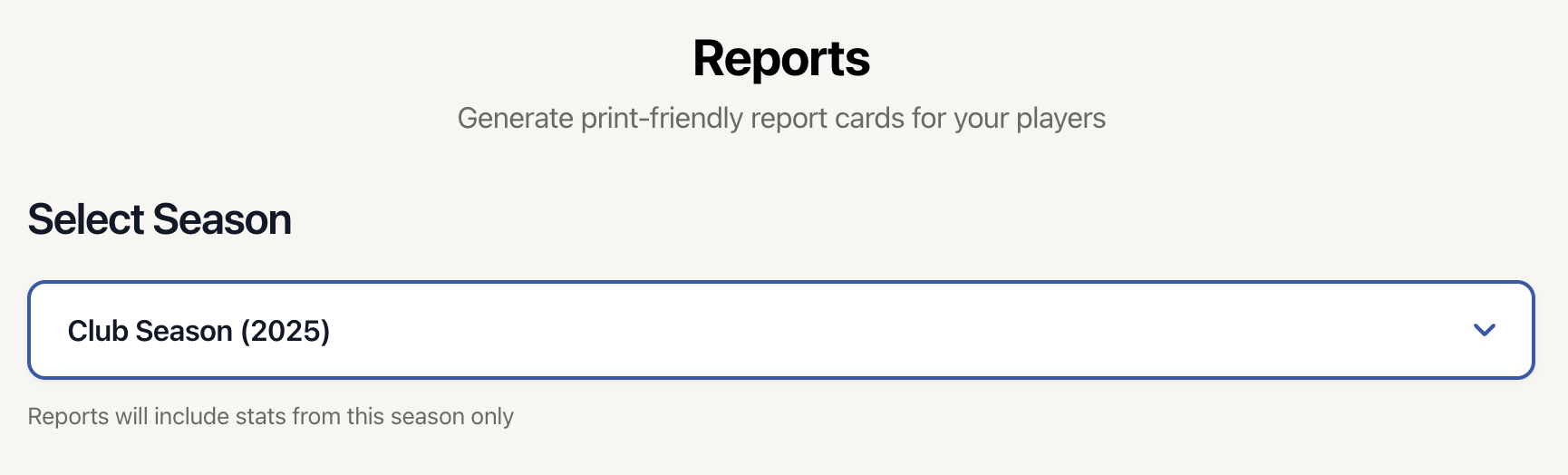
Tip: Seasons are sorted by year, with the most recent season appearing first.
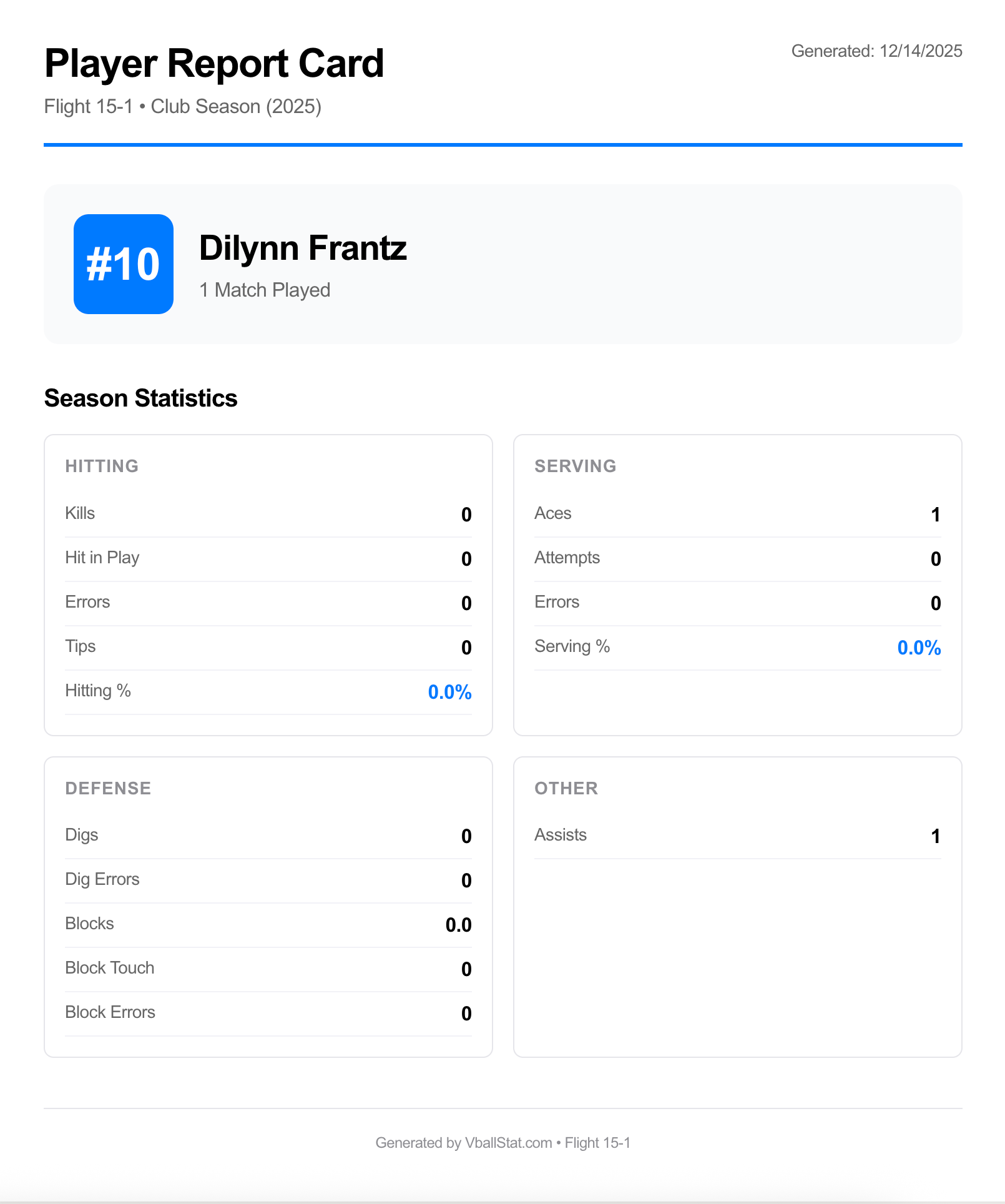
Step 3: Generate Player Report Cards
Player Report Cards provide individual stat summaries that are perfect for sharing with players and parents, or for season-end reviews.
Selecting Players
- Click on Player Report Cards to expand the section
- You'll see a list of all players on your roster with checkboxes
- Check the box next to each player(s) you want to include
- Use Select All to choose everyone, or Clear All to start over
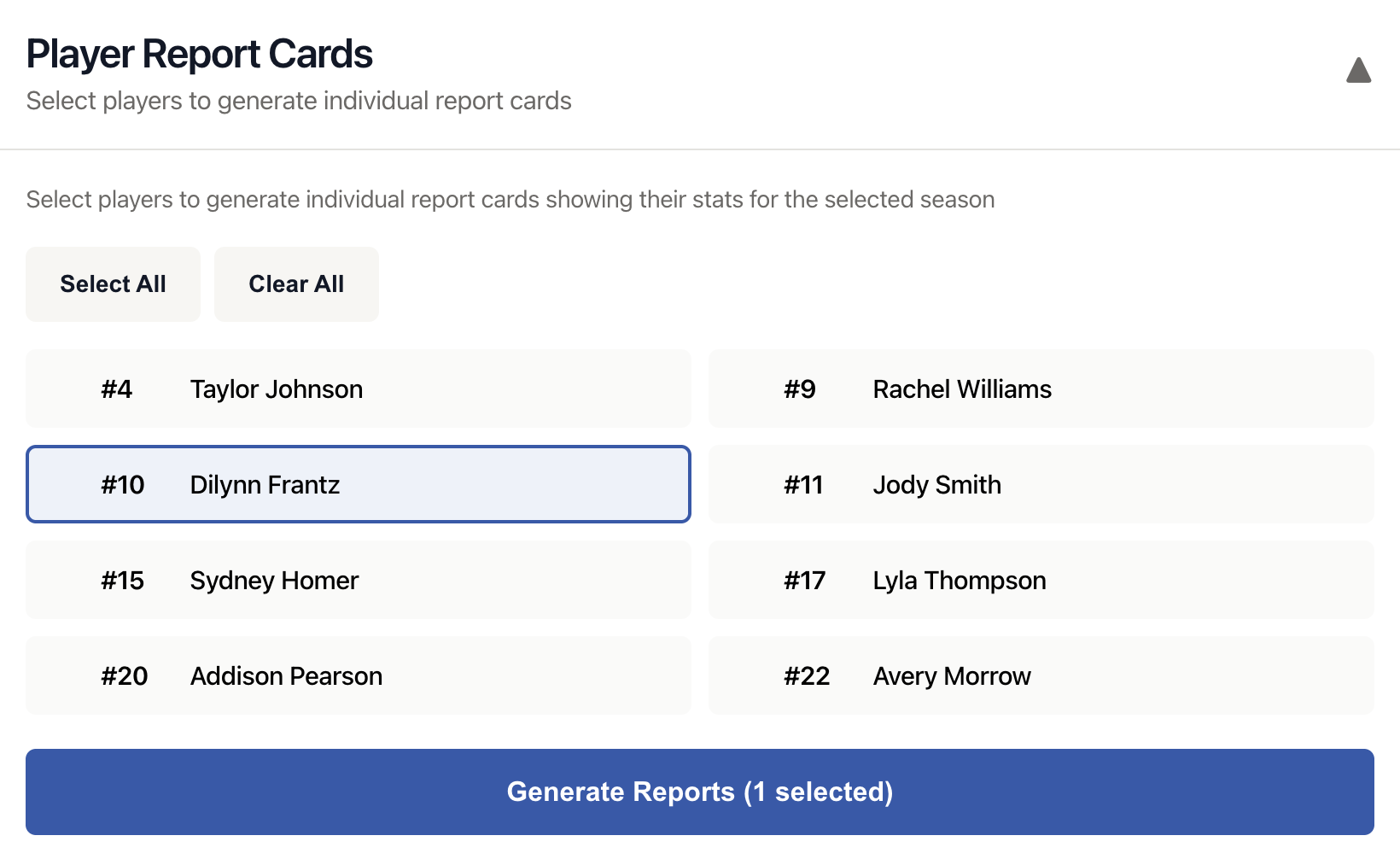
Generating the Reports
Once you've selected your players:
- Click the Generate Reports button at the bottom
- The button will show how many players you've selected (e.g., "Generate Reports (5 selected)")
- Reports will open in a new tab, formatted for easy printing
Step 4: View Player Progress
The Player Progress feature tracks individual improvement throughout the season with detailed match-by-match analysis.
To access Player Progress reports:
- Scroll to the Player Progress section
- Click View Player Progress →
- Select a player from your roster to see their progression
- View charts and graphs showing stat trends over time
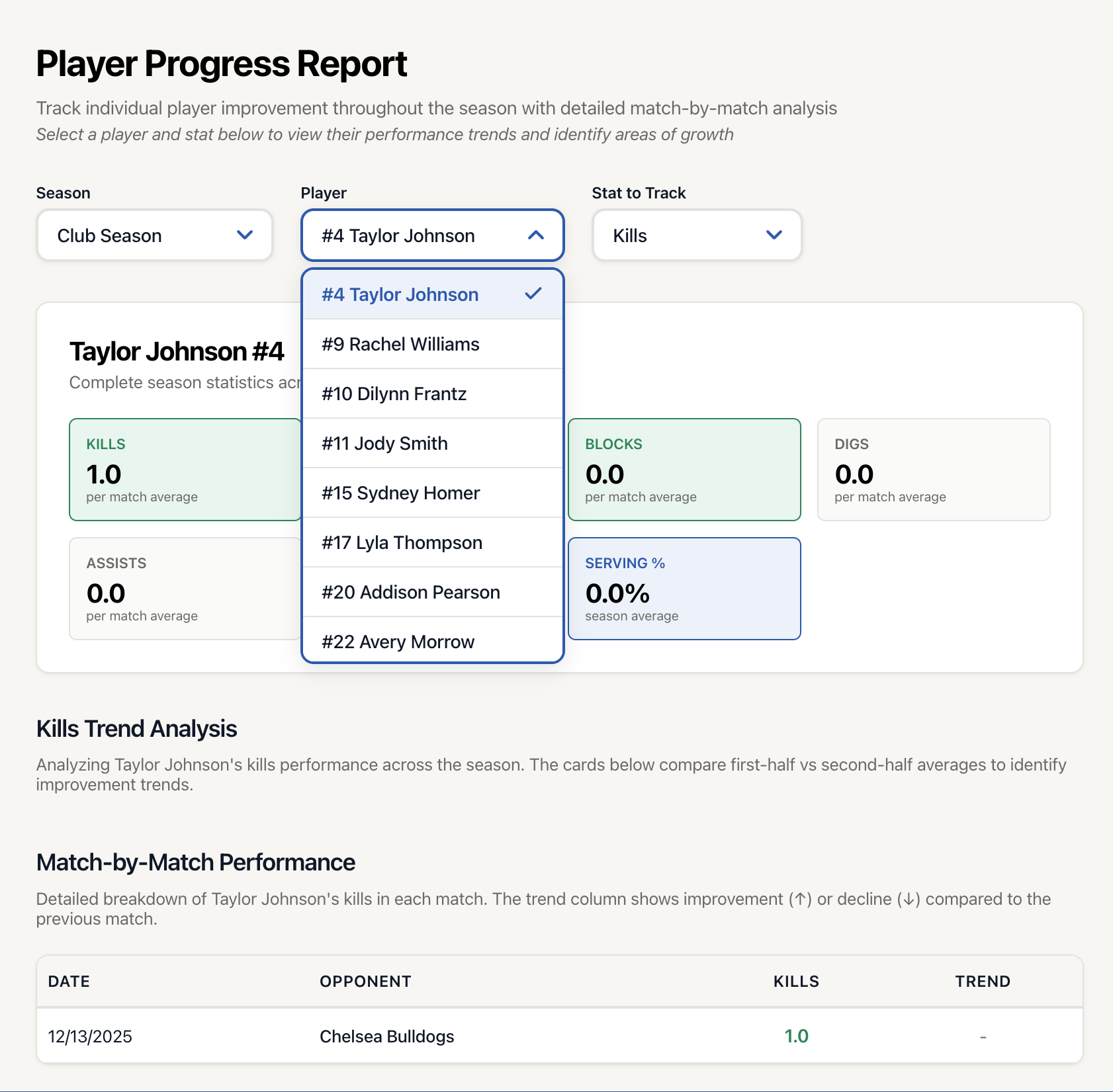
Player Progress reports are ideal for:
- One-on-one player meetings
- Identifying areas for improvement
- Celebrating progress and milestones
Step 5: View Team Comparison
The Team Comparison report provides a side-by-side view of all players with sortable statistics and visual heat maps.
To use Team Comparison:
- Scroll to the Team Comparison section
- Click View Team Comparison →
- Sort by any stat column to identify top performers
- Use the heat map to quickly spot strengths and weaknesses
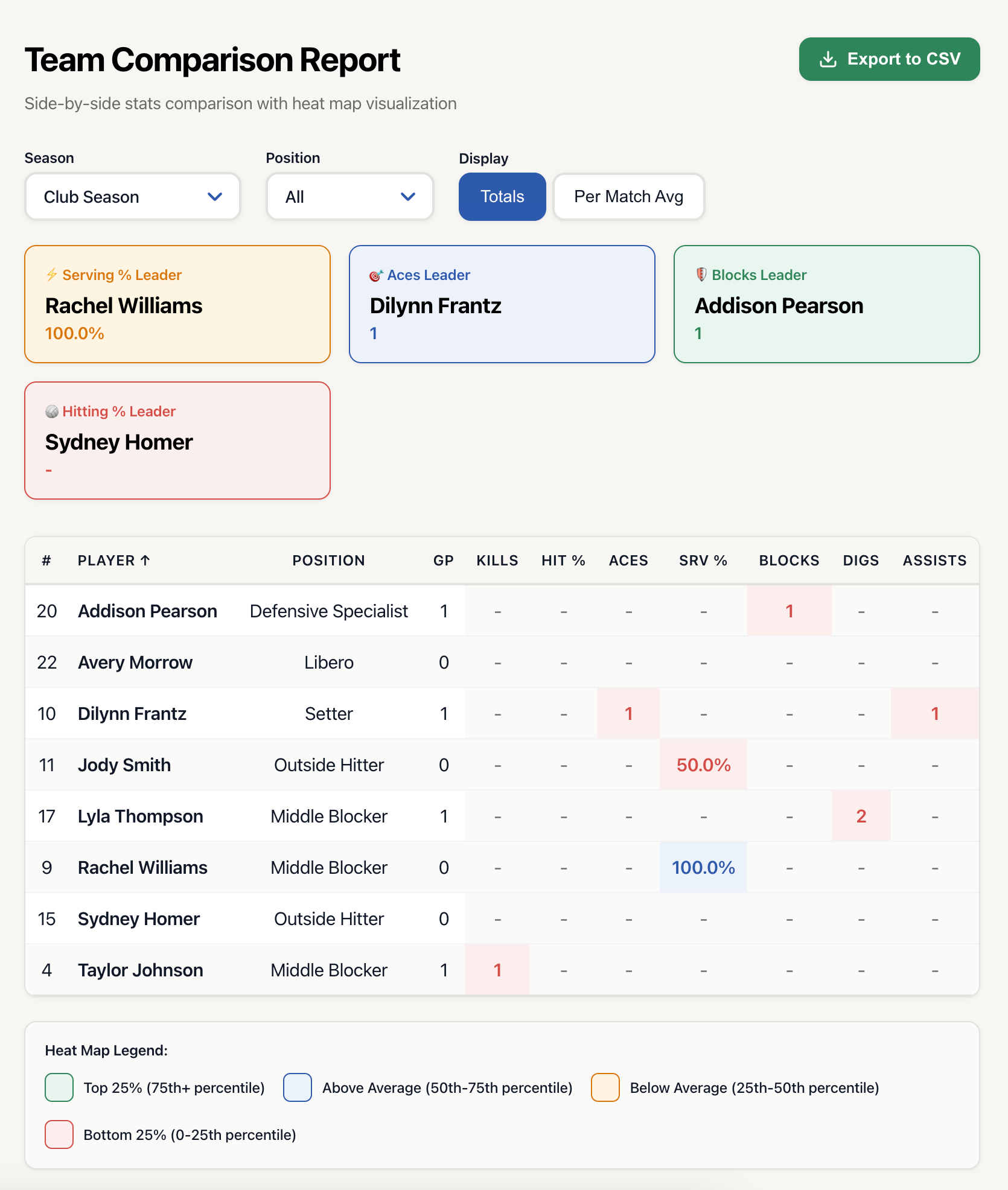
Team Comparison is perfect for:
- Lineup decisions
- Identifying team strengths and weaknesses
- Setting rotation strategies
- Balanced player development
Troubleshooting
No Players Showing Up?
If you don't see any players in the Player Report Cards section:
- Make sure you've selected a season
- Verify that you've added players to your team roster
- Check that players have been added to the selected season
Reports Are Blank?
If generated reports don't show stats:
- Ensure you've recorded match data for the selected season
- Verify that the selected players participated in recorded matches
- Try refreshing the page and generating again
Best Practices
- End of Season - Generate report cards for all players as season-end summaries
- Mid-Season Check-ins - Use Player Progress to monitor development
- Roster Decisions - Use Team Comparison to make informed lineup choices
- Goal Setting - Use progress reports to set individual player goals