Understanding the Coach Dashboard
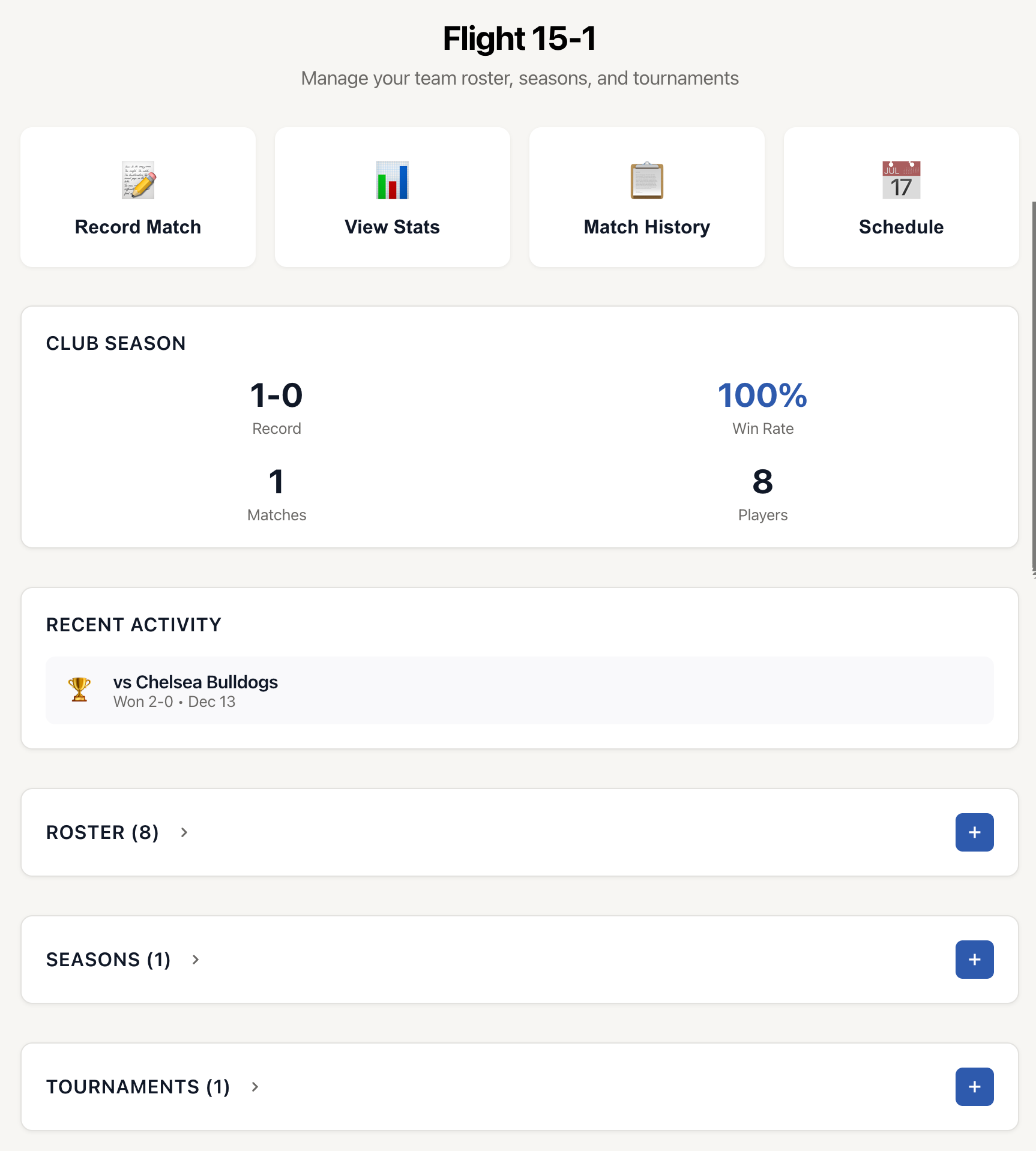
The Coach Dashboard is your central hub for managing your volleyball team. From here, you can track team performance, manage your roster, organize seasons and tournaments, and quickly access the most important coaching features.
Getting to Your Dashboard
After creating a team, you'll be taken directly to the Coach Dashboard. You can always return to it by:
- Selecting your team from the Teams menu in the sidebar
- Clicking on the team name in your team list
Quick Actions
At the top of your dashboard, you'll find four quick action cards for the most common coaching tasks:
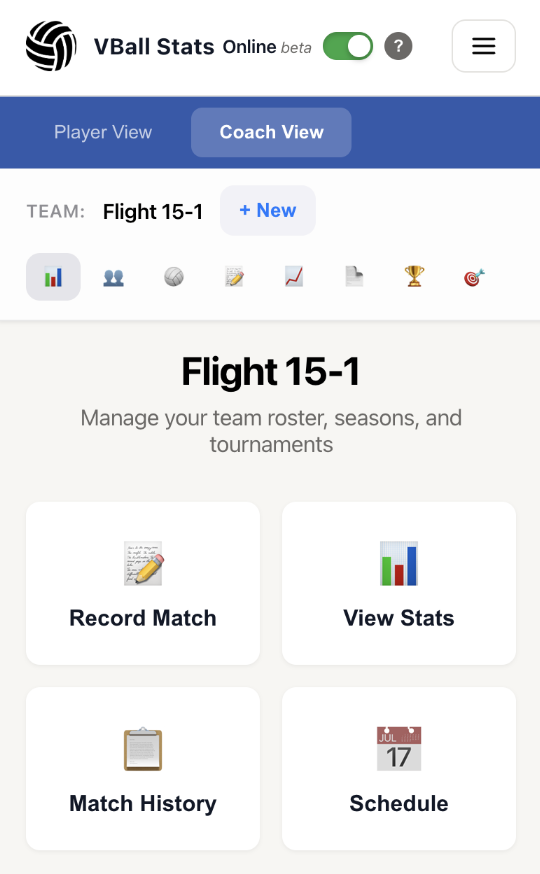
📝 Record Match
Click this card to immediately start recording stats for a new team match. This opens the match recording interface where you can track live stats for your team during a game.
📊 View Stats
Access your team's complete statistical overview. This shows aggregated stats across all players and matches, helping you identify trends and areas for improvement.
📋 Match History
View a chronological list of all matches played in your most recent season. You can review past game results, edit match details, or view detailed stats from each game.
Note: This option is only available after you've created at least one season.
📅 Schedule
Manage your team's match schedule. View upcoming games, add new matches to the calendar, and organize your season.
Note: This option is only available after you've created at least one season.
Team Stats Summary
Below the quick actions, you'll see a summary card displaying your team's current season performance:
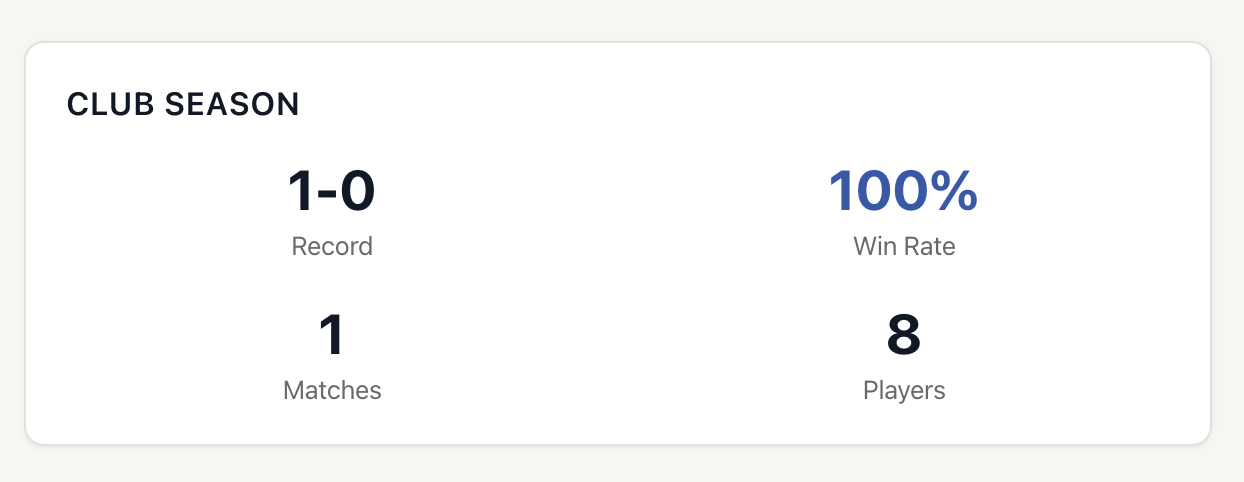
- Season Name: The name of your most recent season appears at the top
- Record (W-L): Your team's win-loss record for the current season
- Win Rate: The percentage of matches won
- Matches: Total number of matches played this season
- Players: Total number of players on your roster
This summary automatically updates as you record new matches and helps you quickly assess your team's performance.
Recent Activity
The Recent Activity section shows your last three matches with key details:
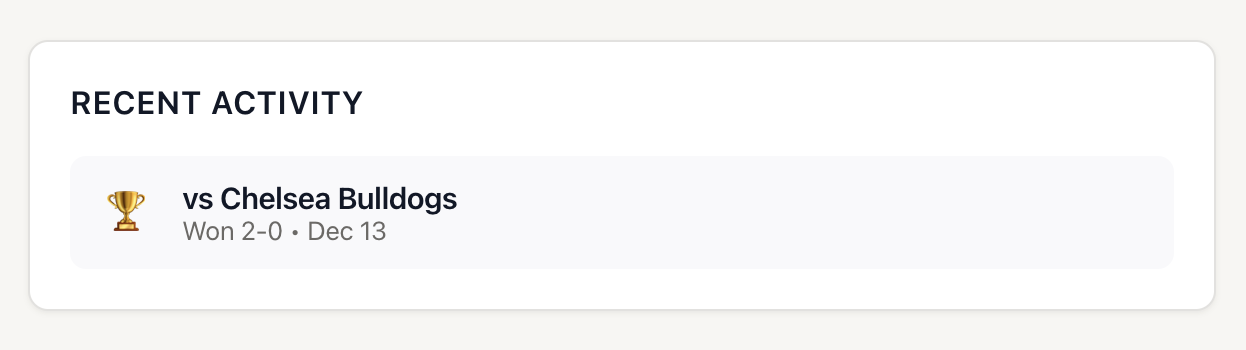
Each match entry displays:
- A trophy icon (🏆) for wins or a note icon (📝) for other matches
- The opponent's name
- The match result (Won/Lost) and final score
- The date the match was played
This gives you a quick overview of your team's recent performance without navigating away from the dashboard.
Managing Your Roster
The Roster section is where you can quickly manage all players on your team.
Adding Players
- Click the + button in the top-right corner of the Roster section
- Fill in the player's details (name, number, position, photo)
- Save to add them to your roster
Viewing Player Details
Click on any player card to view their individual stats, match history, and performance trends.
Roster Information Displayed
Each player card shows:
- Player photo (or initials if no photo is uploaded)
- Player name and jersey number
- Position (if assigned)
Collapsing Sections
Click on the section header (where it says "Roster") to collapse or expand the roster list. This helps keep your dashboard organized when you have many players.
Managing Seasons
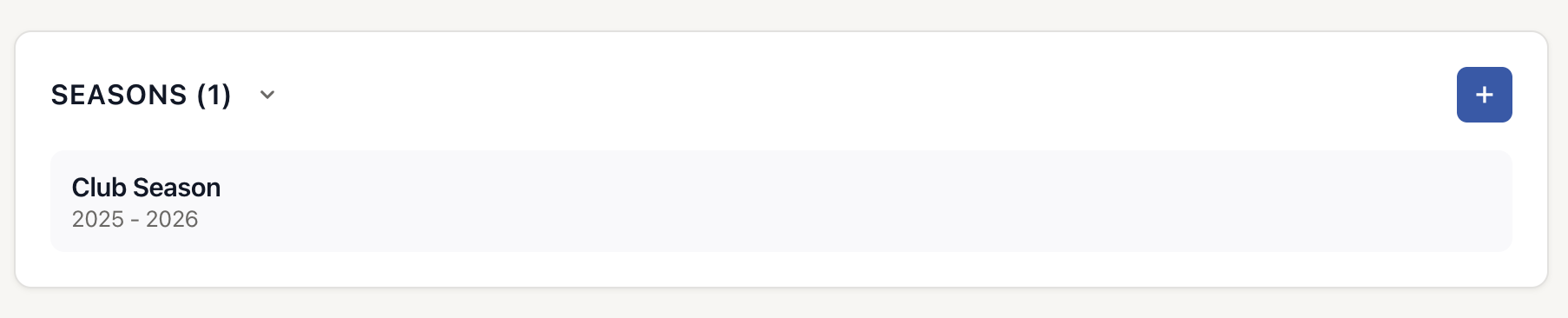
Seasons help you organize your team's matches by time period (e.g., "Fall 2024", "Spring Tournament"):
Creating a Season
- Click the + button in the Seasons section
- Enter the season name and date range
- Save to create the season
Season Details
Each season card displays:
- Season name
- Year range (based on start and end dates)
Accessing Season Details
Click on any season to view detailed information including:
- All matches played during that season
- Season statistics and trends
- Player performance during that season
- Schedule management
Tip: Your most recent season is automatically used for Quick Actions like "Match History" and "Schedule".
Managing Tournaments
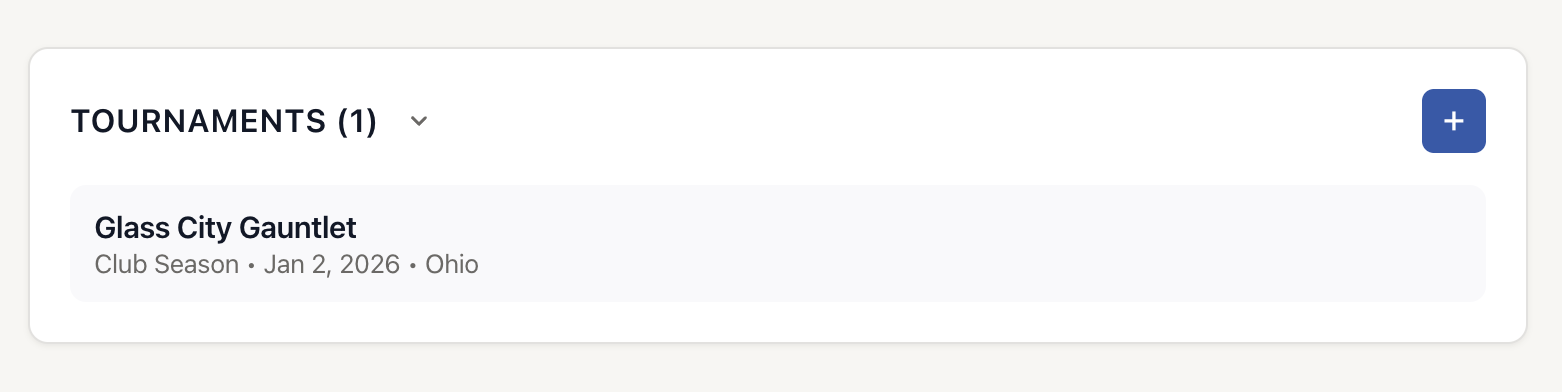
Tournaments let you group related matches within a season:
Creating a Tournament
- Make sure you have at least one season created first
- Click the + button in the Tournaments section
- Enter tournament details (name, date, location, season)
- Save to create the tournament
Tournament Information
Each tournament card shows:
- Tournament name
- Associated season
- Date and location
Viewing Tournament Details
Click on a tournament to view all matches played during that event and tournament-specific statistics.
Note: The dashboard displays your 5 most recent tournaments. To view all tournaments, click the "+" button or access the Tournaments view from the sidebar.
Tips for Using the Dashboard Effectively
Keep Sections Organized
Collapse sections you don't need to see frequently by clicking on their headers. This keeps your dashboard clean and focused on what matters most to you.
Start with the Basics
When setting up a new team, follow this order:
- Add your roster players
- Create a season
- Record your first match
- Add tournaments as needed
Use Quick Actions
The quick action cards at the top are the fastest way to perform common tasks without navigating through multiple menus.
Monitor Recent Activity
Check the Recent Activity section regularly to stay on top of your team's recent performance trends.
Troubleshooting
Quick Actions are Grayed Out
The "Match History" and "Schedule" quick actions require at least one season to be created. Create a season first, then these options will become available.
Stats Not Updating
If your team stats summary isn't showing recent matches, try refreshing the page. Stats are calculated from your most recent season's matches.
Can't Find a Player/Season/Tournament
Check if the section is collapsed. Click on the section header to expand it and view all items.
Tournament Button is Disabled
Tournaments must be associated with a season. Create at least one season before adding tournaments.