As a coach with VBallStat Coach Pro, you can share individual player stats with parents by providing them with their player's unique player code. Each player on your roster has their own code that parents can use to view their player's stats throughout the season.
What is a Parent Invitation Code?
A parent invitation code is a unique identifier for each player on your roster. The code follows the format: VB-[FIRSTNAME]-[4DIGITS] (e.g., VB-SARAH-5234). Parents can enter this code when they sign up for a free VBallStat account, to gain access to their player's stats.
Note: This feature requires a Coach Pro subscription. Each player can be shared with up to 3 parent accounts.
How to Find a Player's Code
Follow these steps to find and share a player's invitation code:
- Navigate to your team dashboard
- Click on Roster
- Click on the player you want to share
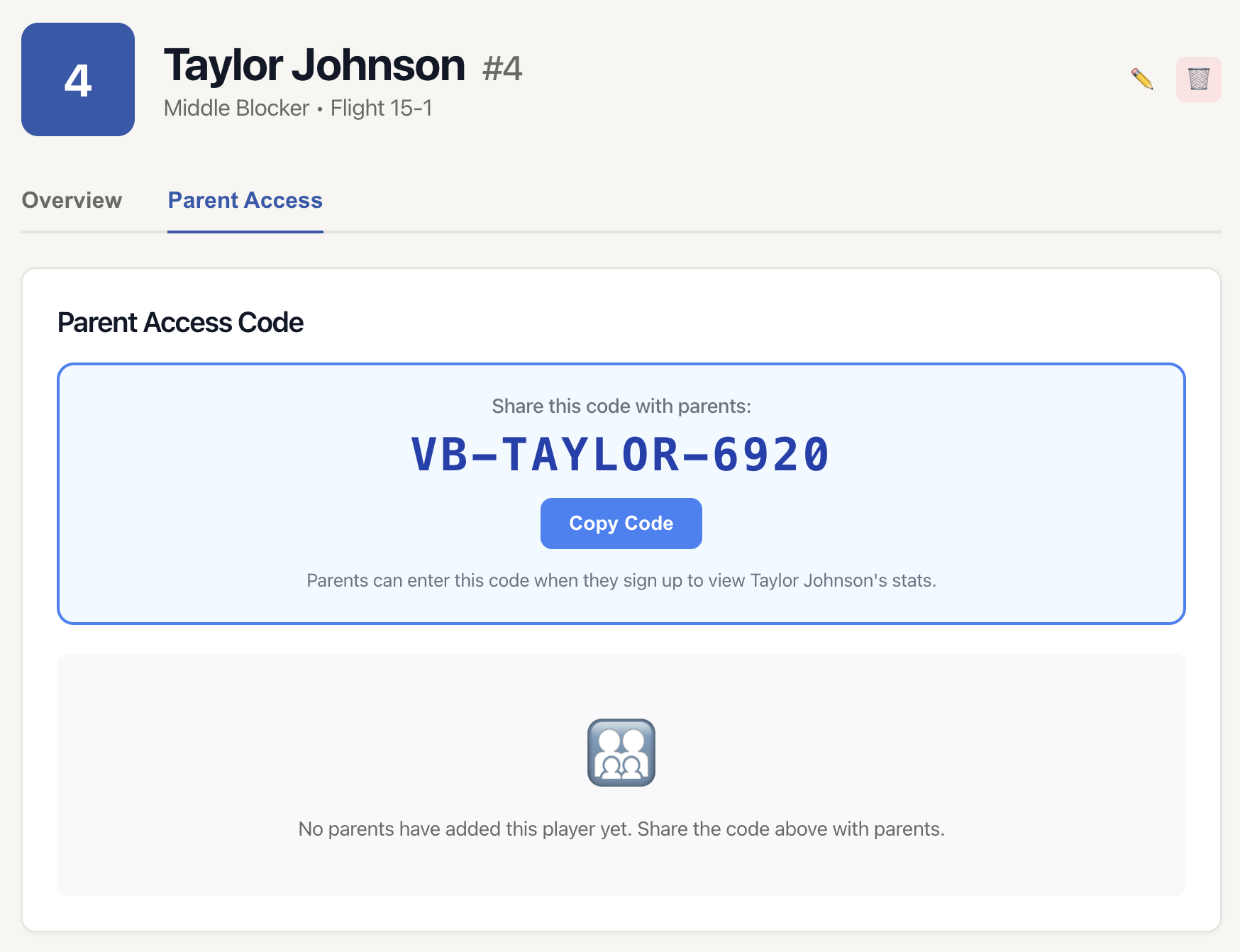
- Click on the Parent Access tab
- You'll see the player's unique code displayed prominently
Copying and Sharing the Code
Once you're on the Parent Access tab:
- The player's code will be displayed in large text in a blue box
- Click the Copy Code button to copy it to your clipboard
- Share the code with parents via text, email, or any messaging platform
How Parents Use the Code
Parents can use the invitation code to access their player's stats:
- Parent creates a free VBallStat account (or log into an existing account)
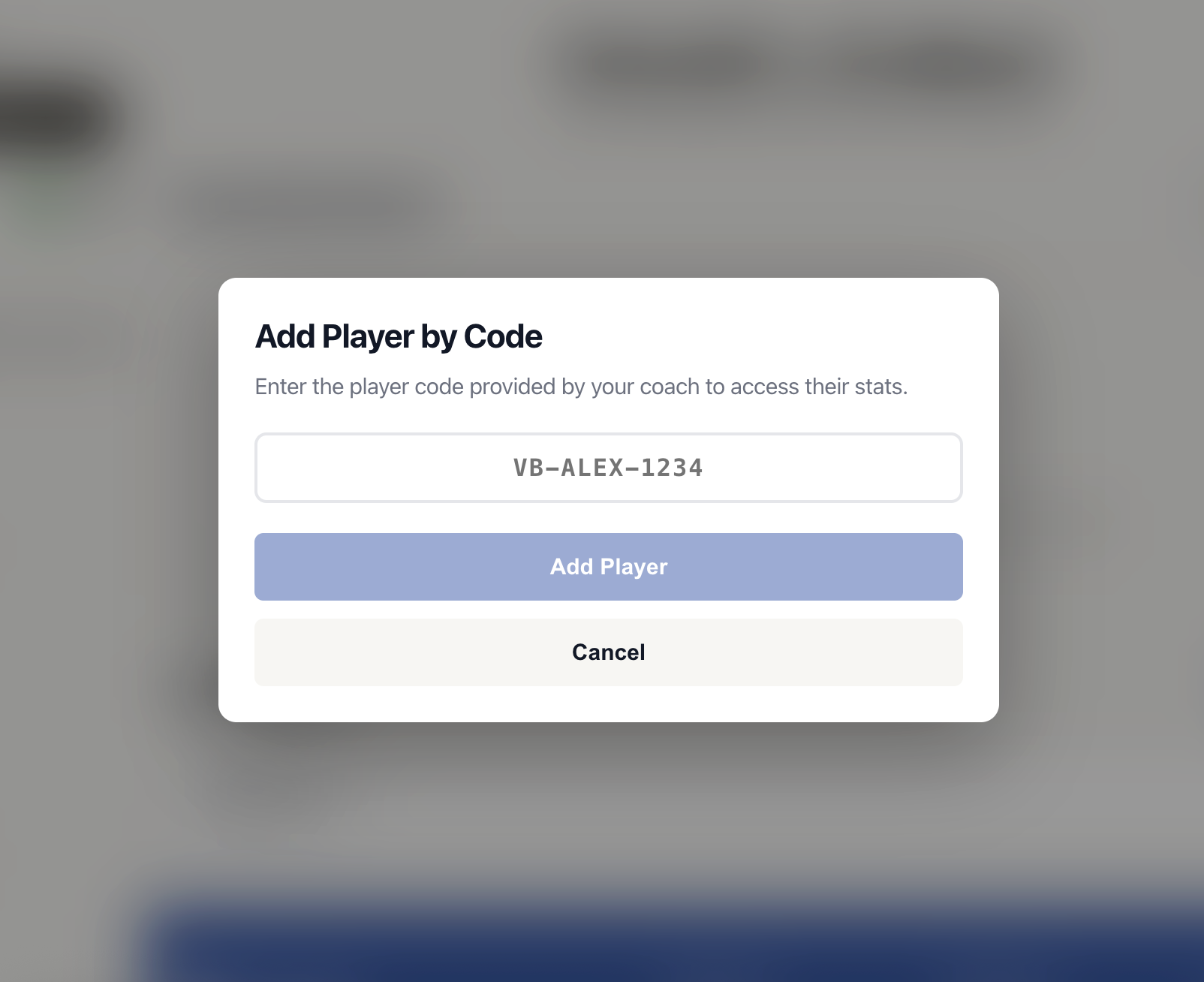
- From their dashboard, in the Shared by Coach section, parents can click on + Add Player Code
- They enter the code you provided (e.g., VB-SARAH-5234)
- The system automatically links the player to their parent account, and they will see the player in the Shared by Coach section of their dashboard.
- Parents can now view all stats for that player across all seasons
Managing Parent Access
You can view and manage which parents have access to each player:
Viewing Active Parents
On the Parent Access tab, you'll see a list of all parents who currently have access to the player. The list shows:
- Parent's name (if available)
- Parent's email address
- When they added the player
- Current count (e.g., "Active Parents (2/3)")
Revoking Parent Access
If you need to remove a parent's access:
- Go to the player's Parent Access tab
- Find the parent in the Active Parents list
- Click the Revoke Access button next to their name
- Confirm the action in the popup dialog
- The parent will immediately lose access to the player's stats
Important: When you revoke access, the parent will no longer see this player in their account, and all their stats will be hidden from that parent.
Parent Limits
Each player can be shared with a maximum of 3 parent accounts. This helps maintain privacy and ensures stats are only shared with authorized family members. If you've reached the 3-parent limit and need to add another parent, you'll first need to revoke access from one of the existing parents.
What Parents Can See
When parents use the invitation code, they gain read-only access to:
- Player information (name, number, position, team)
- Career stats across all seasons
- Individual season breakdowns
- Complete match history with detailed stats
- Performance trends over time
Parents cannot:
- Edit any player information
- View other players on the team
- See team strategy or private coach notes
- Record or modify match stats
- Access team management features
Upgrading to Coach Pro
The parent invitation code feature is exclusive to Coach Pro subscribers. If you don't have Coach Pro yet:
- Go to your account settings
- Click Upgrade to Coach Pro
- Complete the subscription process
- You'll immediately have access to share player codes with parents
Troubleshooting
Parent says the code doesn't work
- Verify the code was copied correctly (it's case-insensitive, but must include the VB- prefix)
- Make sure the parent hasn't already added this player (each code can only be used once per account)
- Check that the player limit (3 parents) hasn't been reached
I don't see a share code for a player
- Ensure you have an active Coach Pro subscription
- Try refreshing the page
- If the issue persists, contact VBallStat support
How do I change a player's code?
Player codes are automatically generated and cannot be changed. If you need to restrict access, use the revoke feature instead, which will prevent anyone from using the code to add the player in the future.
Privacy and Security
Player invitation codes are designed with privacy in mind:
- Codes only provide access to one specific player
- Parents cannot see other team members or team-wide information
- You can revoke access at any time
- The 3-parent limit prevents codes from being widely shared
- All stats are read-only for parents
Tip: Share player codes directly with parents rather than posting them publicly. While codes are limited to 3 uses, it's best to keep them within the immediate family.