Now that you've set up your player and season, you're ready to record your first match! This guide will walk you through the match recording process, from setup to saving your statistics.
Before You Begin
Make sure you have:
- ✓ Created at least one player
- ✓ Created at least one season for that player
- ✓ Selected the active player and season you want to record for
If you haven't completed these steps, check out our guides on Adding Your First Player and Creating Your First Season.
Starting a New Match
1. Access the Match Recording Page
To recrod a match, you can click on the "Record Match" button, or the record match icon (if on a mobile device):
Desktop View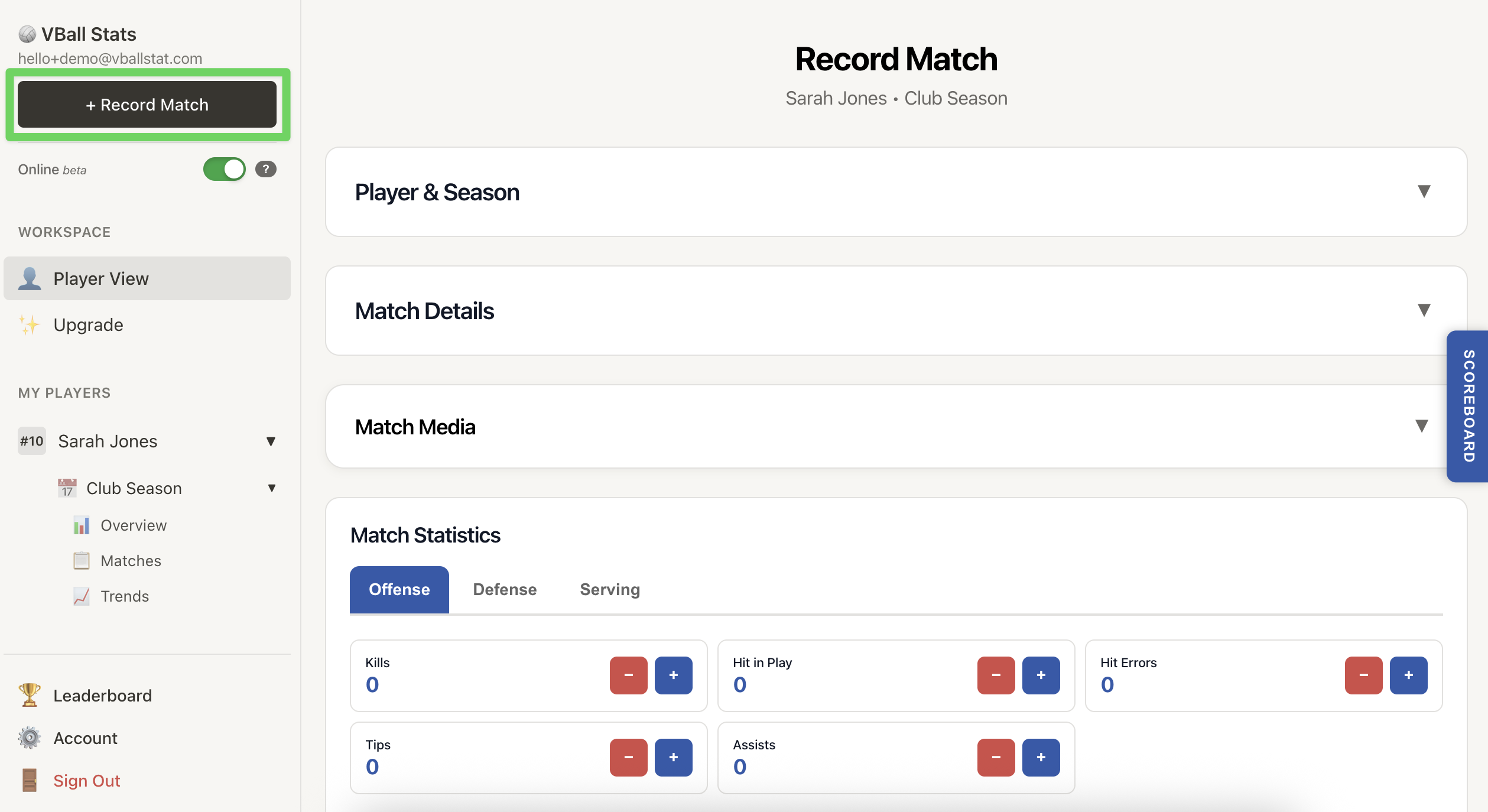 |
Mobile View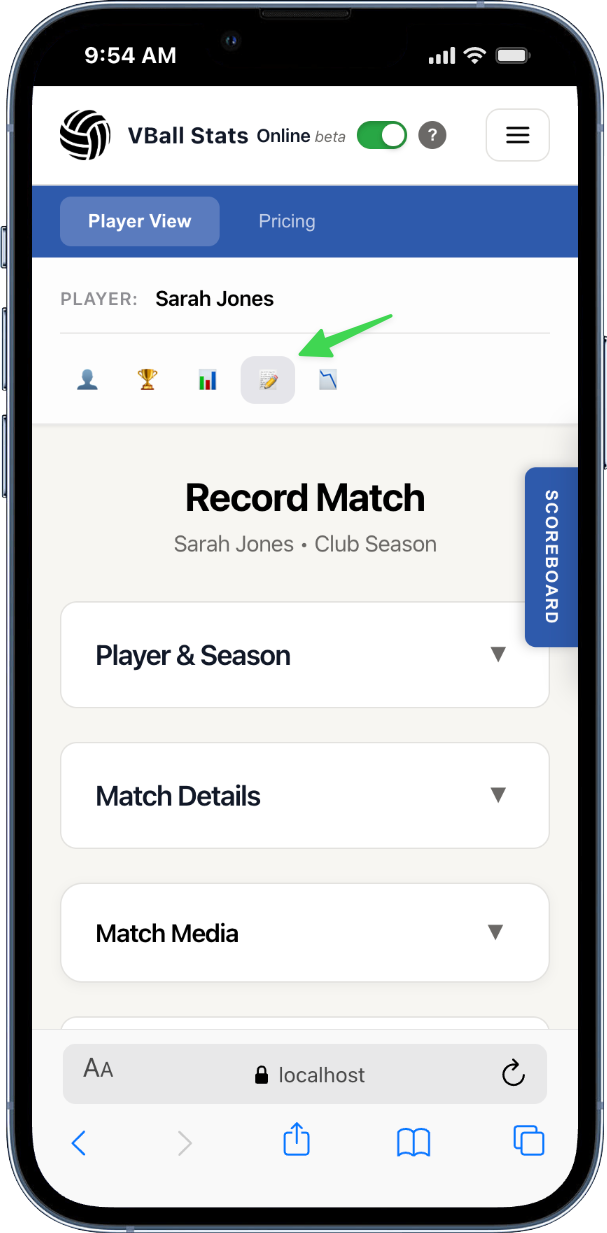 |
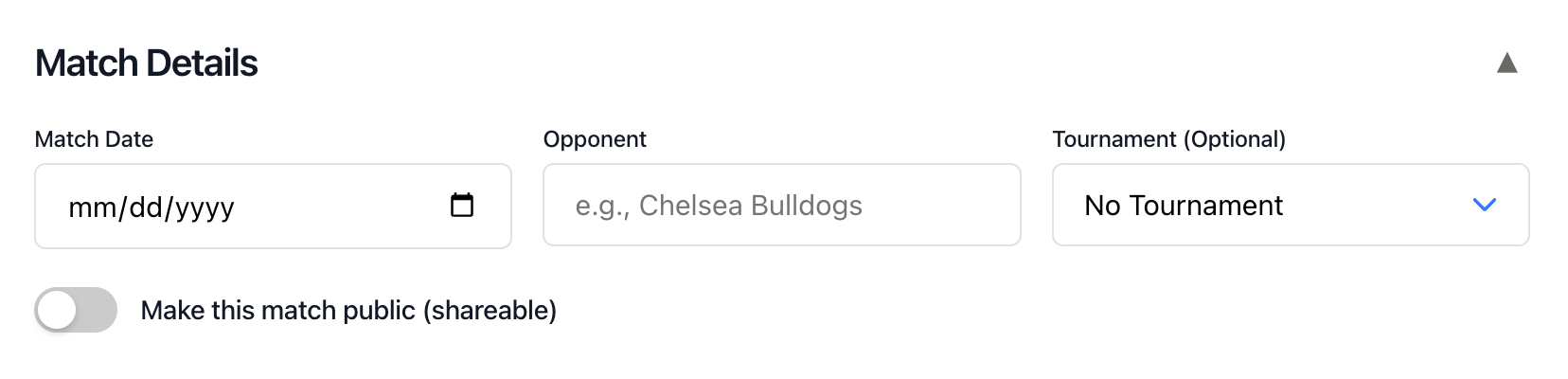
2. Enter Match Details
Before recording statistics, you'll set up the basic match information:
Opponent (Required)
- Enter the name of the opposing team
- Examples: "Central High School", "Beach Volleyball Club", "Tournament Team A"
Date (Optional)
- Select the date the match was played
- Defaults to today's date
- Useful for recording past matches
Tournament (Optional)
- If the match you are recording is associated with a tournament the player is participating in, you can select the tournament it should be associated with.
3. Record Match Statistics
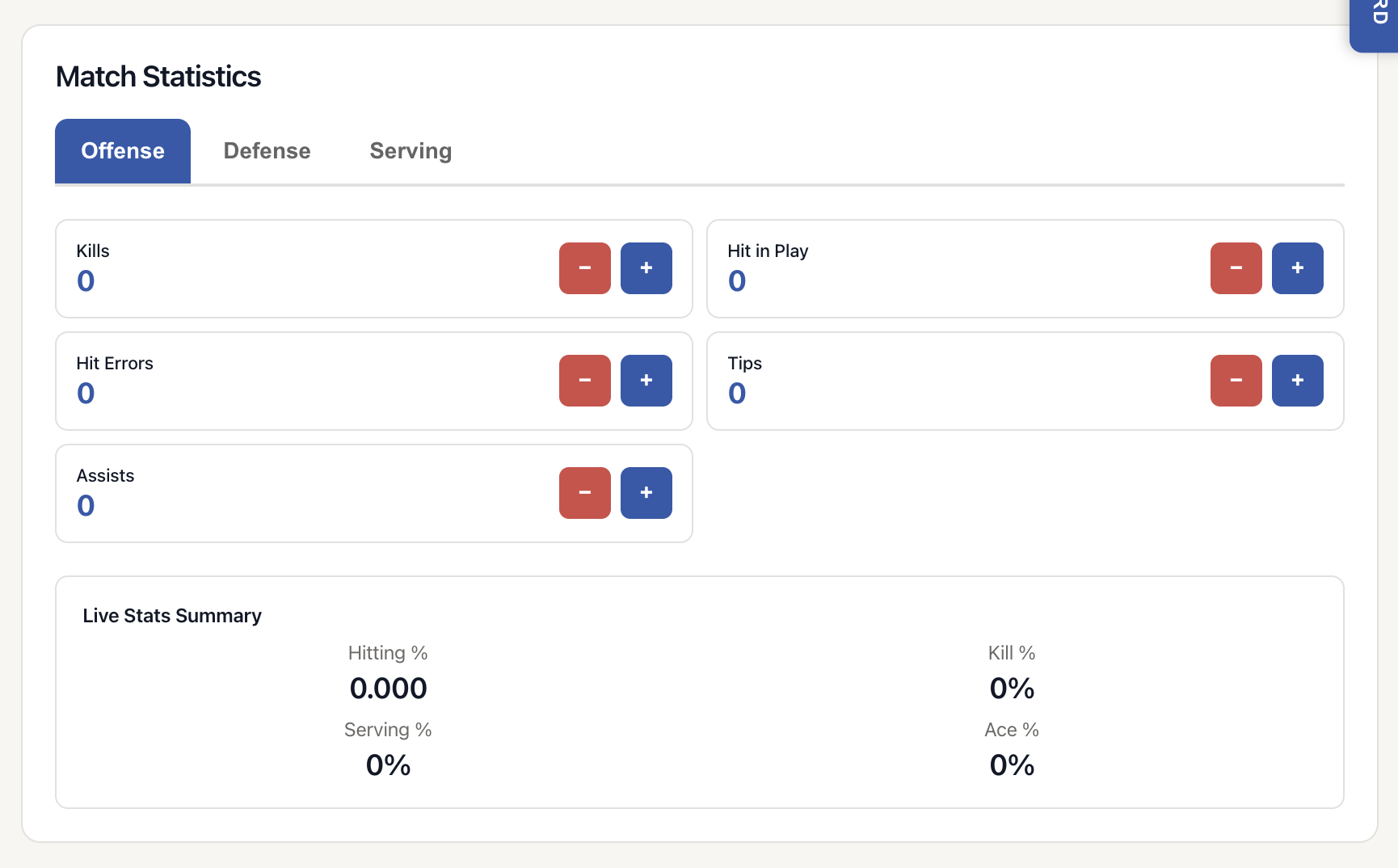
After entering match details, you'll move to the statistics recording interface. Here's what you can track:
Serving Statistics
- Serve Attempts: Each time your player serves, it is considered a "serve attempt" regardless of the outcome
- Aces: Successful serves that aren't touched by the opponent
- Service Errors: Serves that go out of bounds, into the net, or violate rules
Attacking Statistics
- Kills: Attack attempts that result in a point
- Hit Errors: Attack attempts that result in an opponent's point
- Hit in Play: Attacks that do not result in an error, or a kill
Blocking Statistics
- Block: Individual blocks that result in a point
- Half Block: Blocks with a teammate that result in a point
- Block Touches: Contact with the ball during a block that does not result in an error or an opponent point
- Block Errors: Blocks that result in an opponent's point
Defensive Statistics
- Digs: Successful defensive plays that keep the ball in play
- Dig Errors: Digs that result in a point for an opponent
- SR Touches: First contact with the ball after an opponent serve
Setting Statistics
- Assists: Successful sets that lead to kills
4. Using Quick Entry Features
Tap to Increment
- Simply tap "+" next to the stat to add one
Undo Last Entry
- Made a mistake? Tap "-" next to the stat to subtract the stat
5. Using the Scoreboard
To record the score during a match, click on the floating Scoreboard widget to expand it. The scoreboard widget can be moved up and down the Record Match view, if you need to place it out of the way.
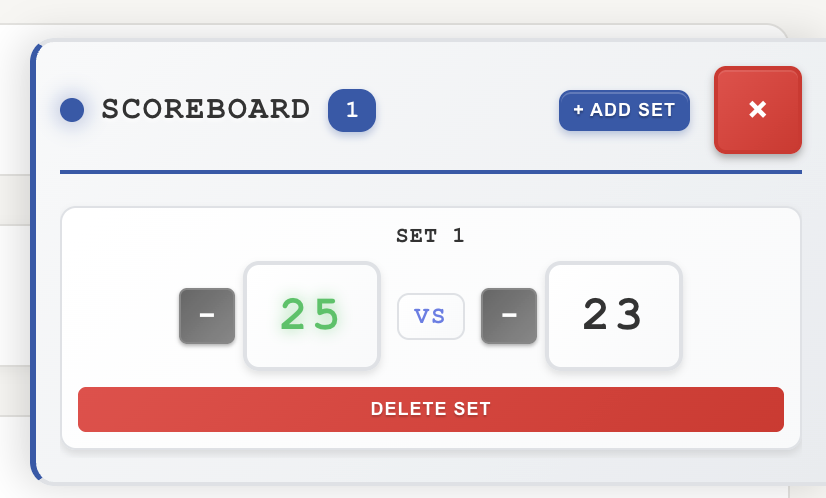
Using the scoreboard widget you can:
- Track the score of multiple sets
- Delete set scores
- Increment points for your player's team and the opponent team
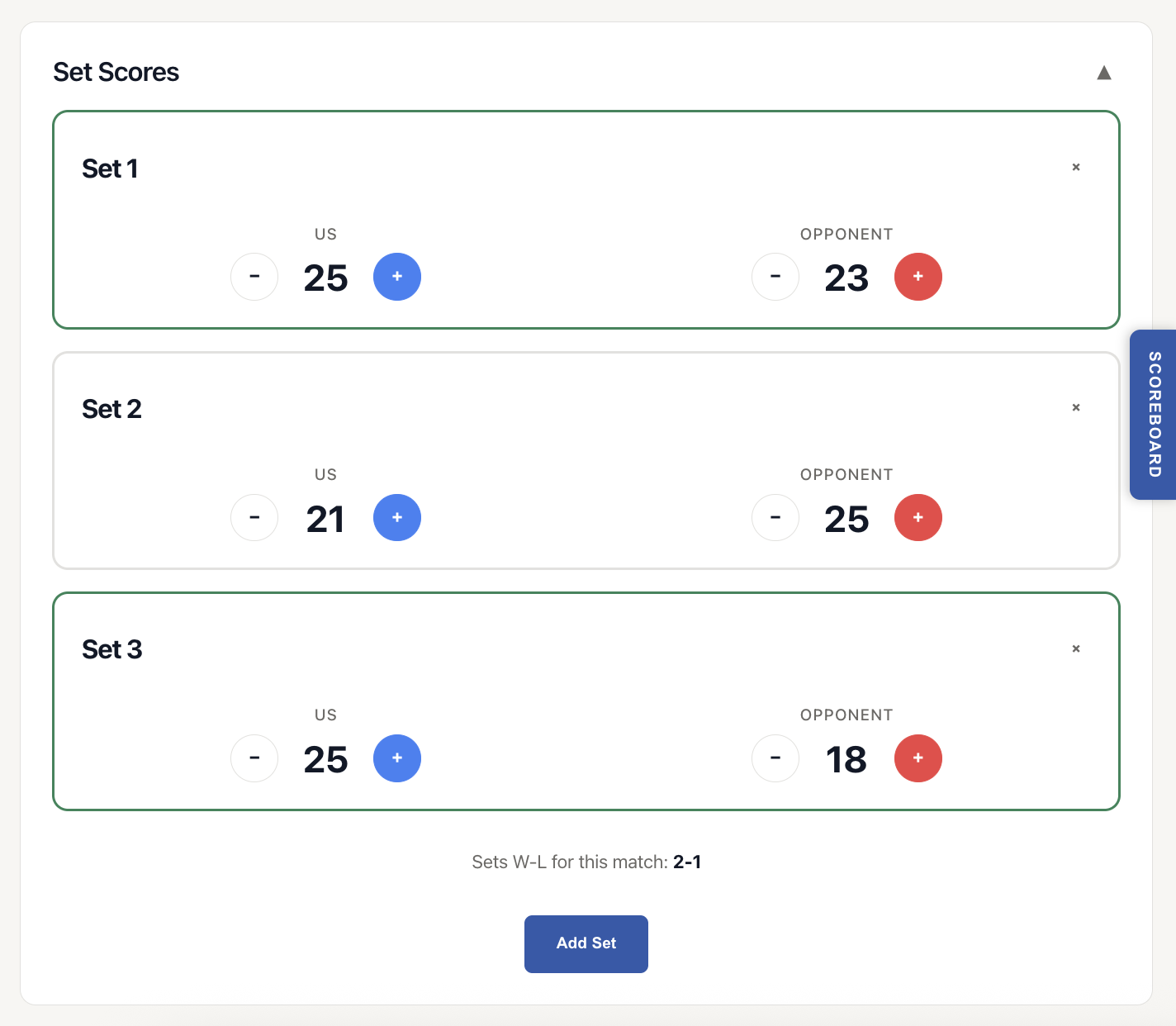
There is no requirement to use the Scoreboard widget, and if you prefer to enter in the scores for each set manually at the end of each set, this can be done from the Set Score area instead:
6. Using Notes
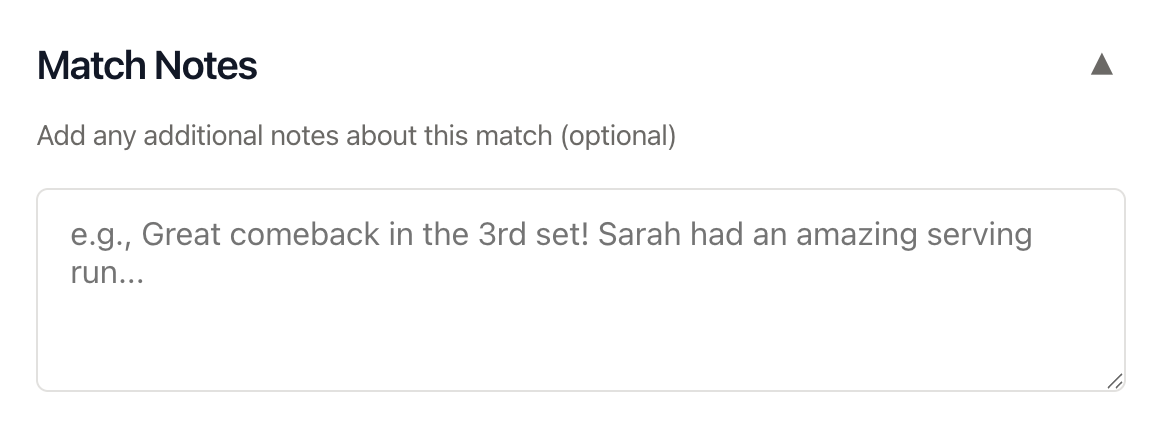
While recording match statistics, if you want to include additional notes for the match these can be added to the "notes" section, and will be saved with your match. This is useful to designate whether your player played a different position, or notate that they only played in X number of sets during the match.
Once you've entered all statistics:
- Review your numbers to ensure accuracy
- Click the "Save Match" button at the bottom
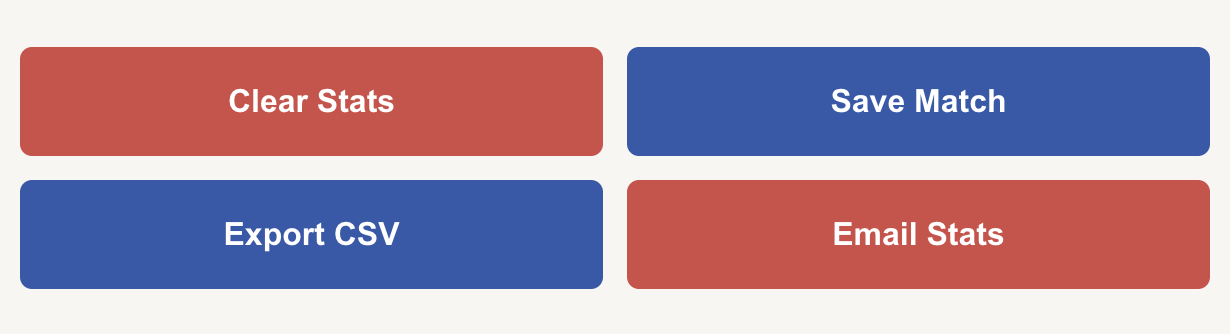
You can also export your match details via CSV file, or email your recorded data to the email address tied to your account.
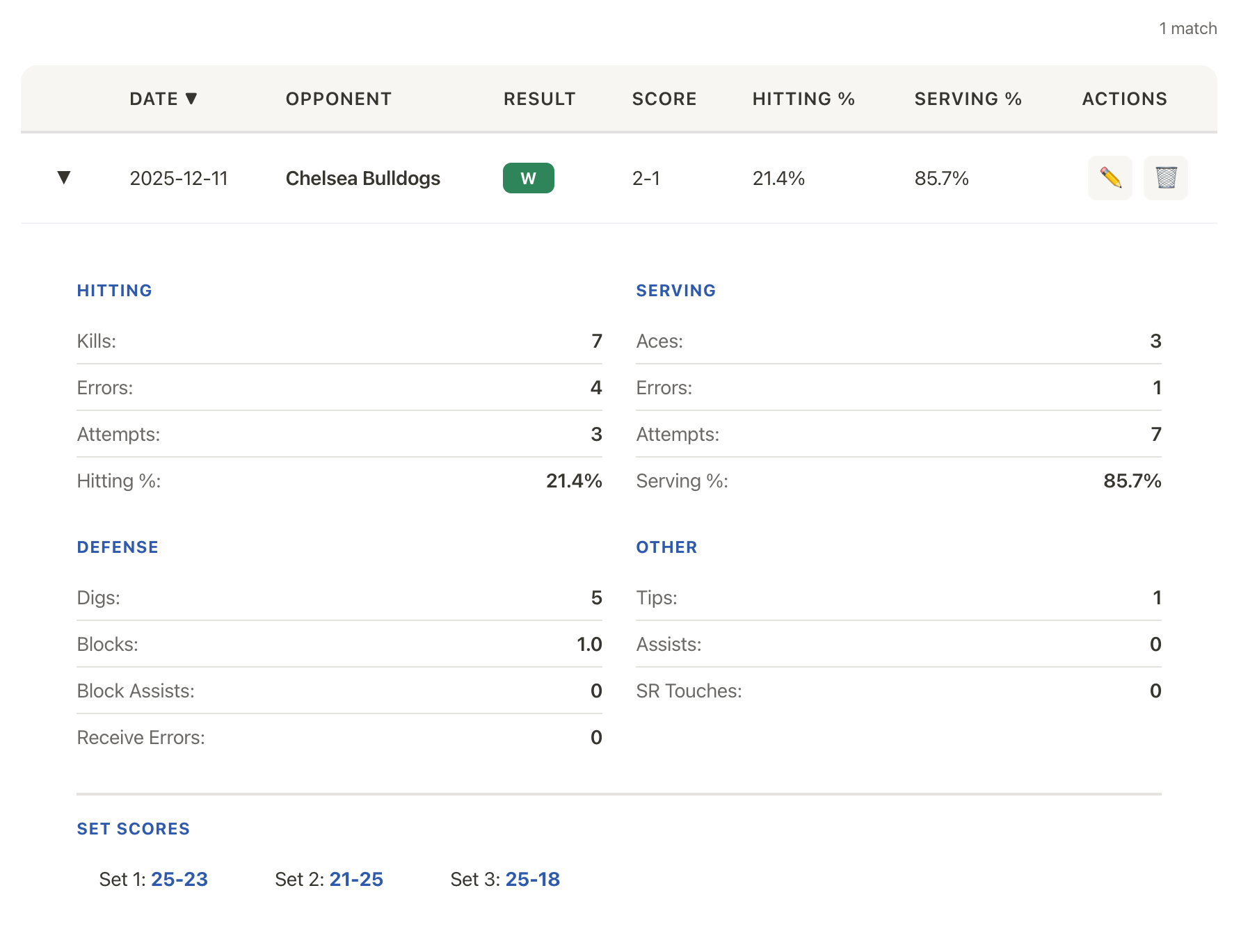
Once a match is saved, the data will be available in your player's Match History for the season.
Editing a Match
Need to make changes after saving?
- Go to the match history for that season
- Click on the match you want to edit
- Select "Edit Match"
- Update any statistics or details
- Click "Save Changes"
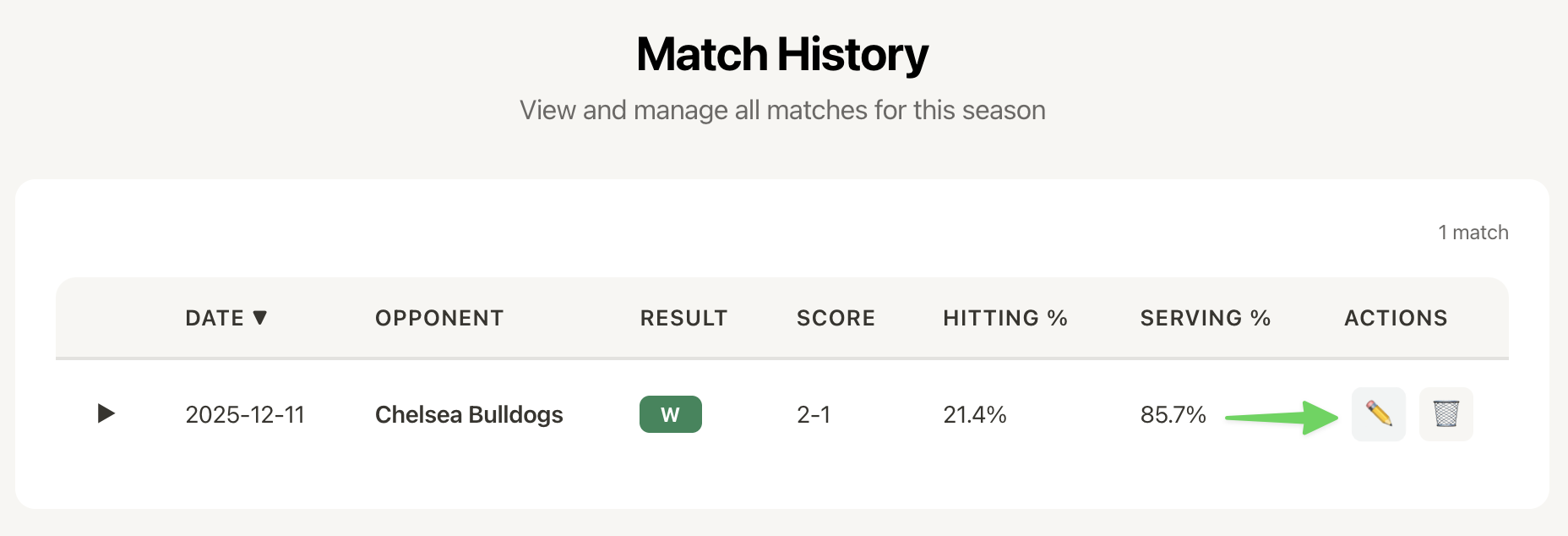
Note: Match edits are saved immediately and will update all associated statistics and season totals.
Match Recording Tips
✓ Record during the match when possible - Real-time recording is more accurate than trying to remember later
✓ Don't worry about perfection - You can always edit matches later if you catch an error
✓ Use match notes for context - Add notes about injuries, exceptional plays, or match conditions
✓ Take advantage of auto-calculations - VBall Stats automatically calculates hitting percentage, efficiency, and other advanced metrics
Understanding Key Statistics
Hitting Percentage
- Calculated as: (Kills - Errors) / Total Attacks
- Industry-standard metric for attacking efficiency
- Example: 15 kills, 5 errors, 40 attempts = .250 hitting percentage
Service Ace Percentage
- Calculated as: Aces / Total Serves
- Measures serving effectiveness
- Higher is better, but balanced with low error rate
Common Questions
Can I record a match after it's already been played?
Yes! There's no requirement to record in real-time. Set the match date to when it was actually played.
What if I don't know all the statistics?
That's okay! Record what you know. Even partial data is useful for tracking trends. You can always add more details later.
Can I delete a match?
Yes, you can delete matches from the match history page. This will permanently remove the match and adjust season statistics accordingly.
How do I record a multi-set match?
Stats are recording cumulatively for the entire match, rather than broken down by set.
What if I make a mistake during recording?
Use the "-" button to remove an entry for a stat, or edit the match after saving to correct any errors.
Can I add photos or videos to matches?
Yes! After saving a match, you can upload photos to the "Match Media" area.
How do statistics affect my overall season stats?
Each match automatically updates your season totals, averages, and trends. You'll see these reflected immediately in your season dashboard.