Recording matches for your team allows you to track individual player statistics and team performance throughout the season. This guide will walk you through the complete process of recording a match from start to finish.
Getting Started
To begin recording a match, navigate to your team dashboard and click the "Record Match" button.
Desktop View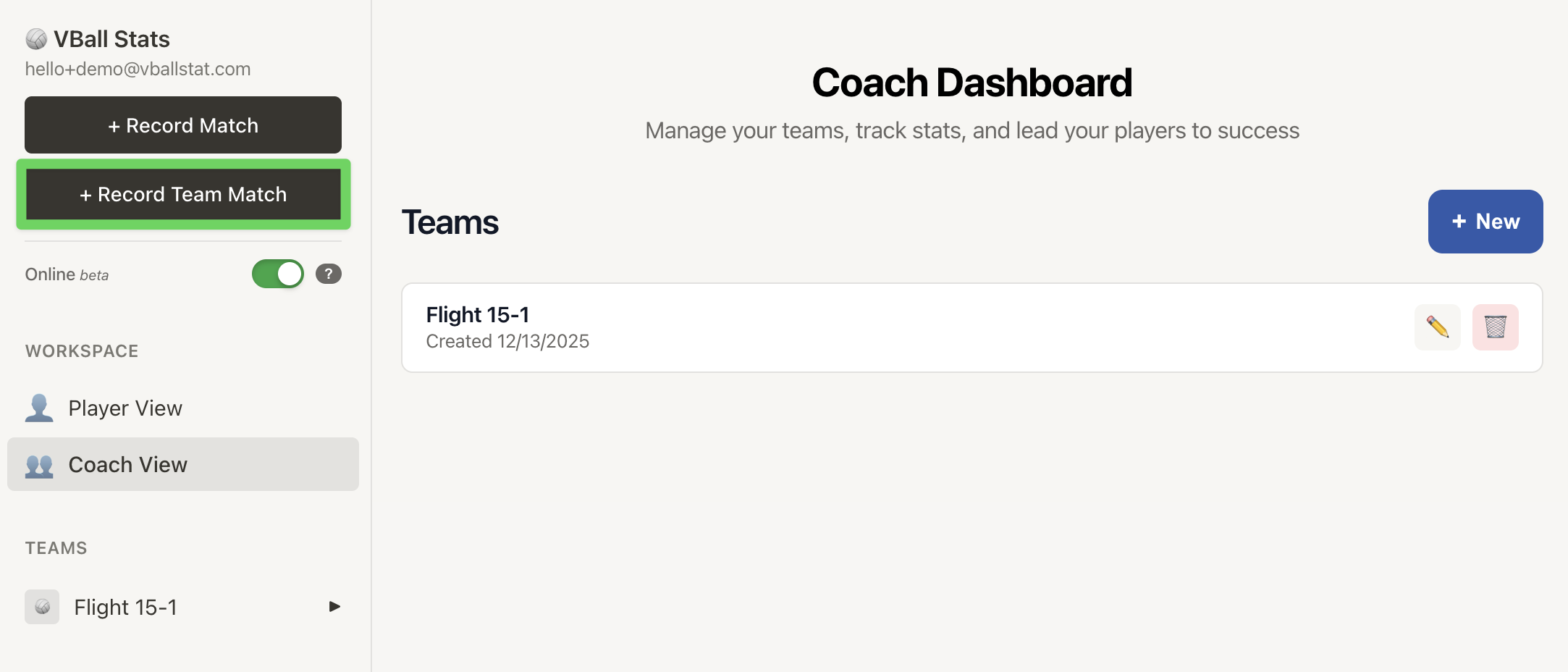 |
Mobile View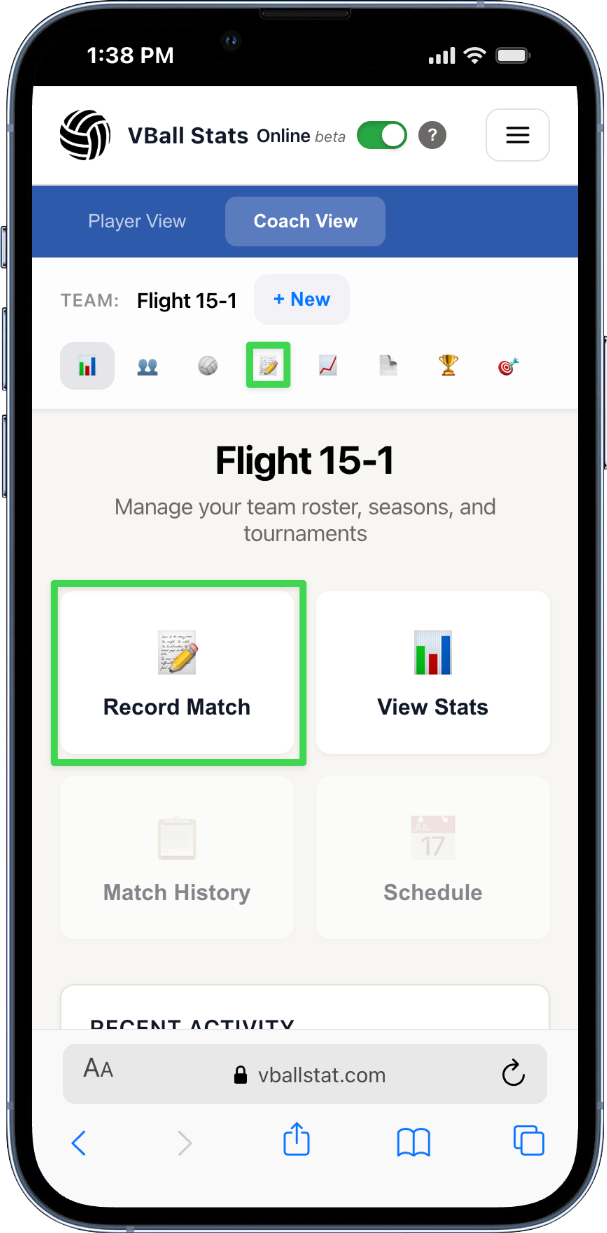 |
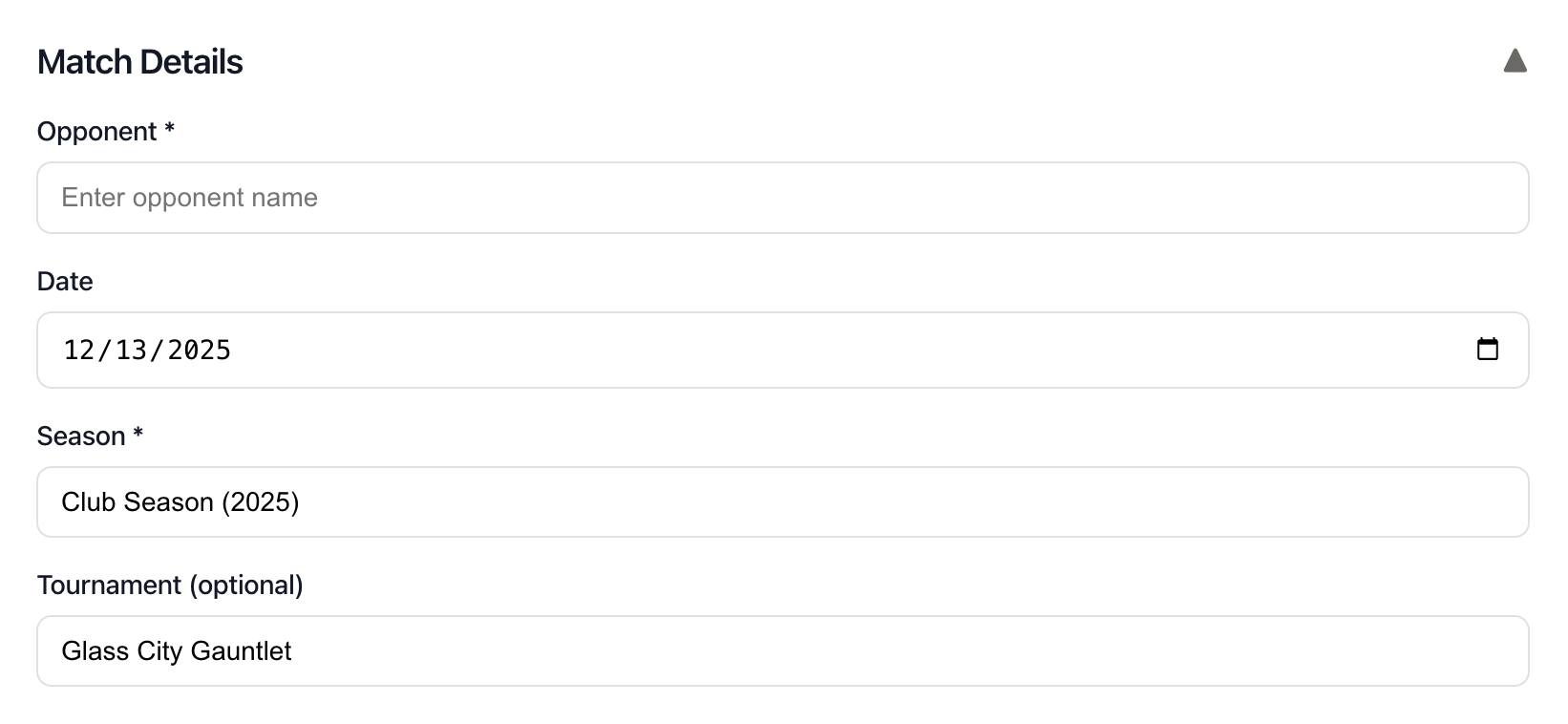
Step 1: Enter Match Details
Start by filling in the basic match information:
- Opponent: Enter the name of the opposing team
- Match Date: Select the date the match was played
- Season: Choose which season this match belongs to (required)
- Tournament: Optionally select a tournament if this match is part of one
Step 2: Enter Set Scores
Record the score for each set played in the match using the floating Scoreboard Widget:
- Click Scoreboard to expand the scoring widget
- Click "Add Set" to create a new set score entry
- Enter your team's score and the opponent's score for each set
- Add additional sets as needed
- You can delete a set by clicking the delete button next to it
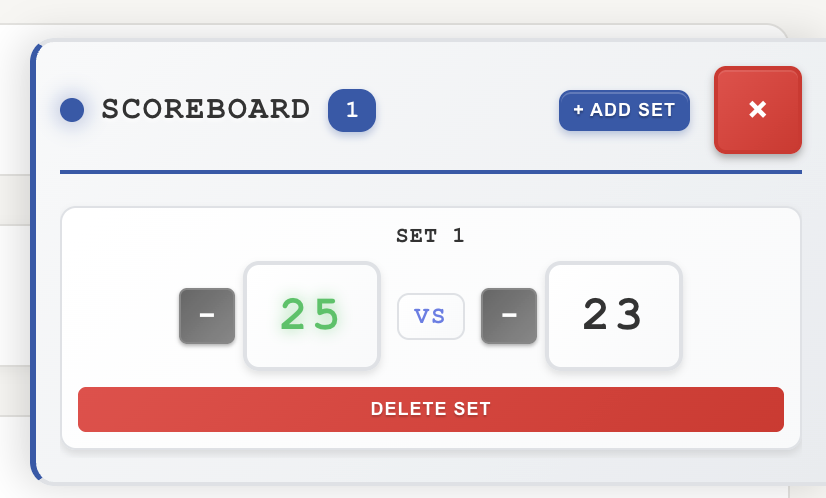
Note: The app automatically determines if your team won or lost based on the set scores.
Step 3: Record Player Statistics
The VballStat app offers two modes for recording player statistics:
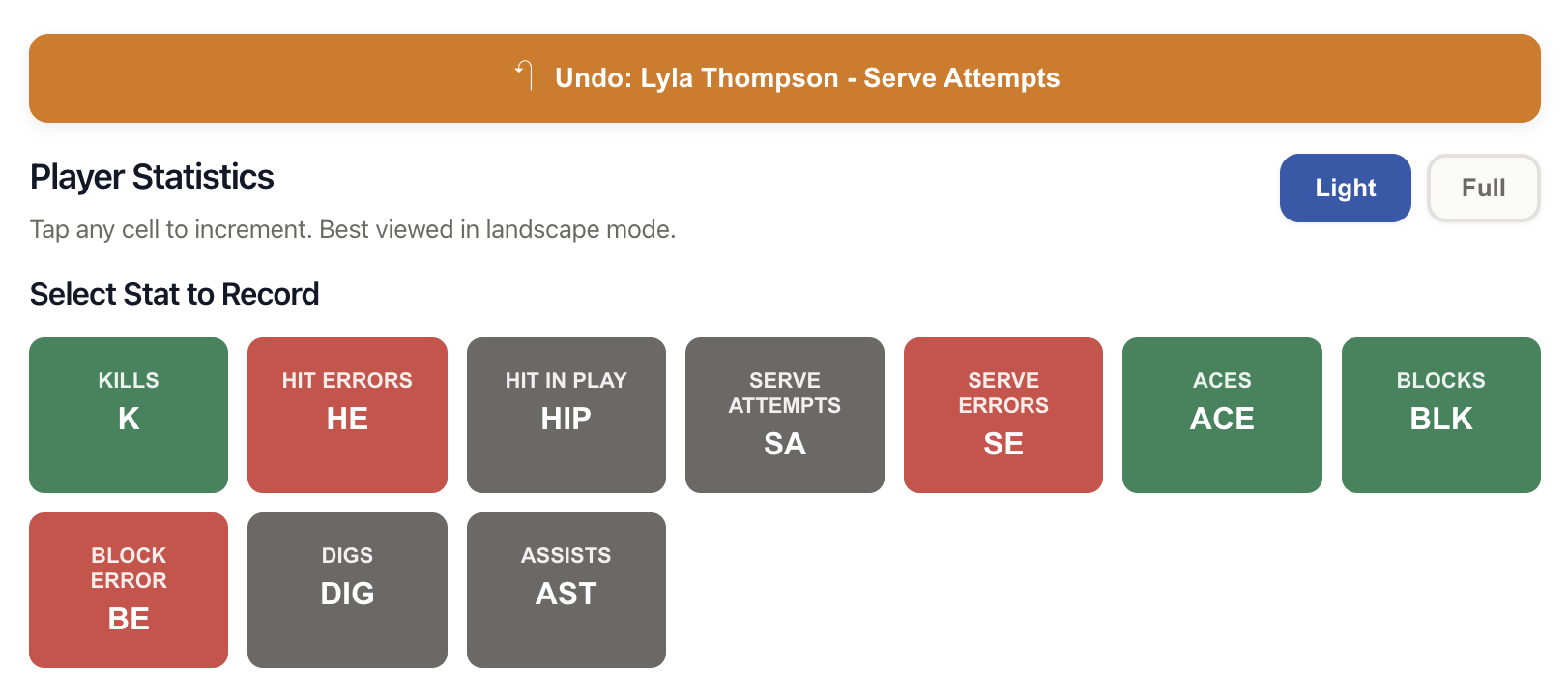
Light Mode (Default)
Light mode tracks the most essential statistics quickly:
- Kills
- Hitting Errors
- Hit in Play
- Serve Attempts
- Aces
- Service Errors
- Digs
- Blocks
- Block Error
- Assists
Full Mode
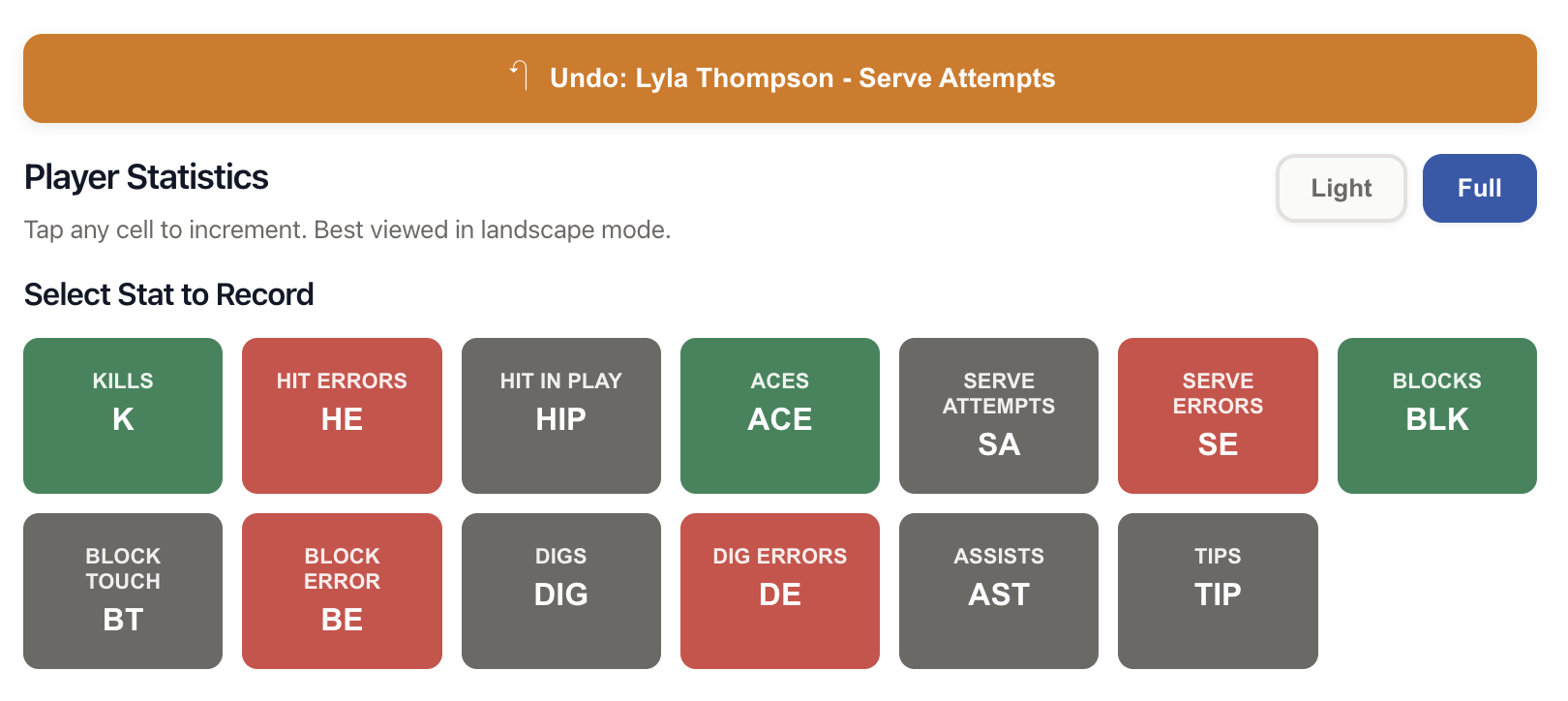
Full mode includes additional detailed statistics:
- Kills
- Hit Error
- Hit in Play
- Serve Attempts
- Ace
- Service Error
- Dig
- Dig Errors
- Block Touch
- Blocks
- Block Errors
- Assist
- Tips
To switch between modes, click the "Light Mode" or "Full Mode" toggle at the top of the statistics section.
 How to Record Stats
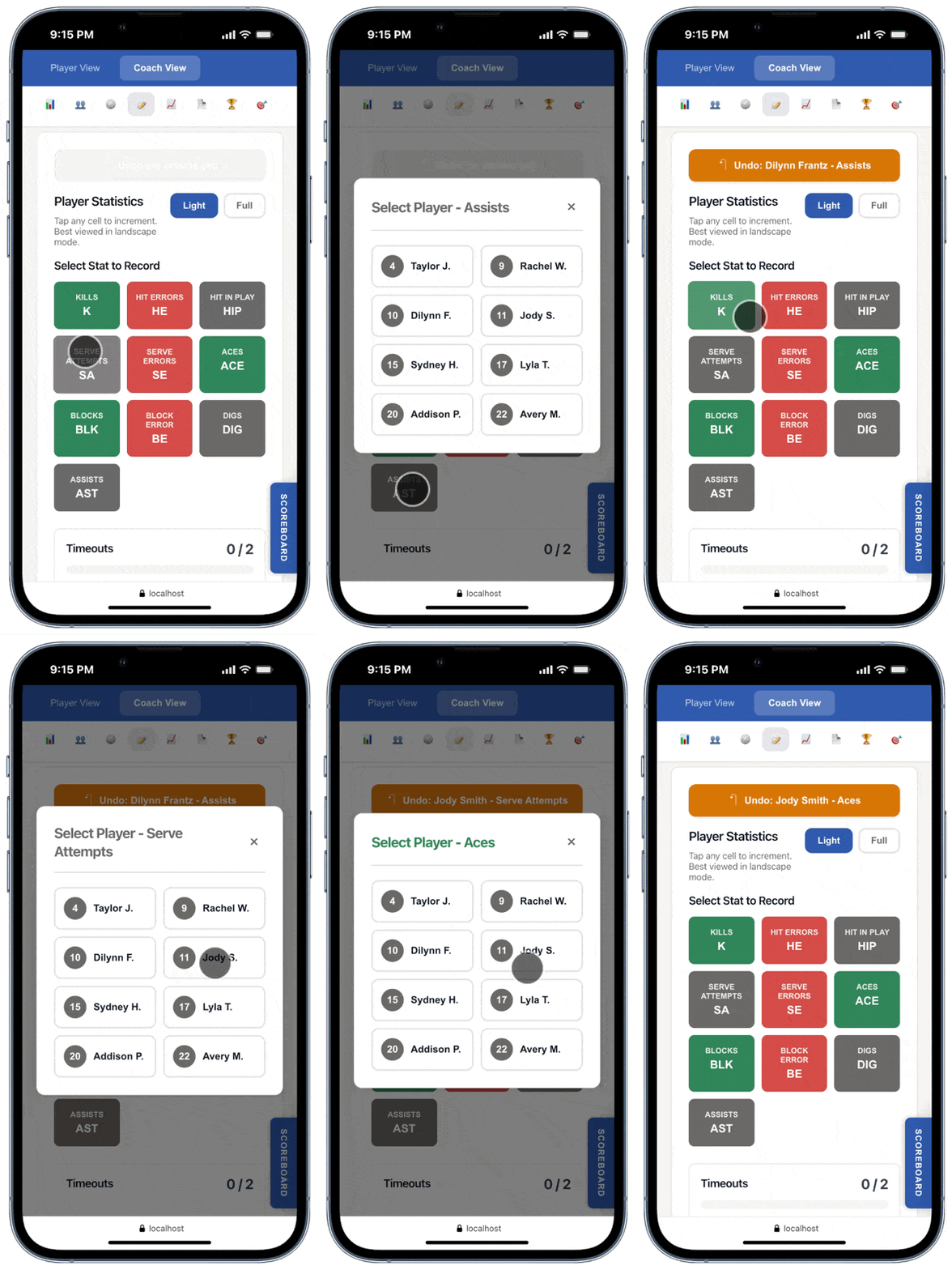
Recording statistics is a simple two-step process:
- Select the statistic: Click on the stat button (e.g., "Kills", "Aces", "Digs")
- Select the player: Click on the player's name or number who performed that action
The stat will be immediately recorded and added to that player's total. You'll see the count update in real-time.
Undo Function
If you make a mistake, use the "Undo" button to remove the last recorded statistic. The undo function works sequentially, removing actions in reverse order each time the button is clicked.
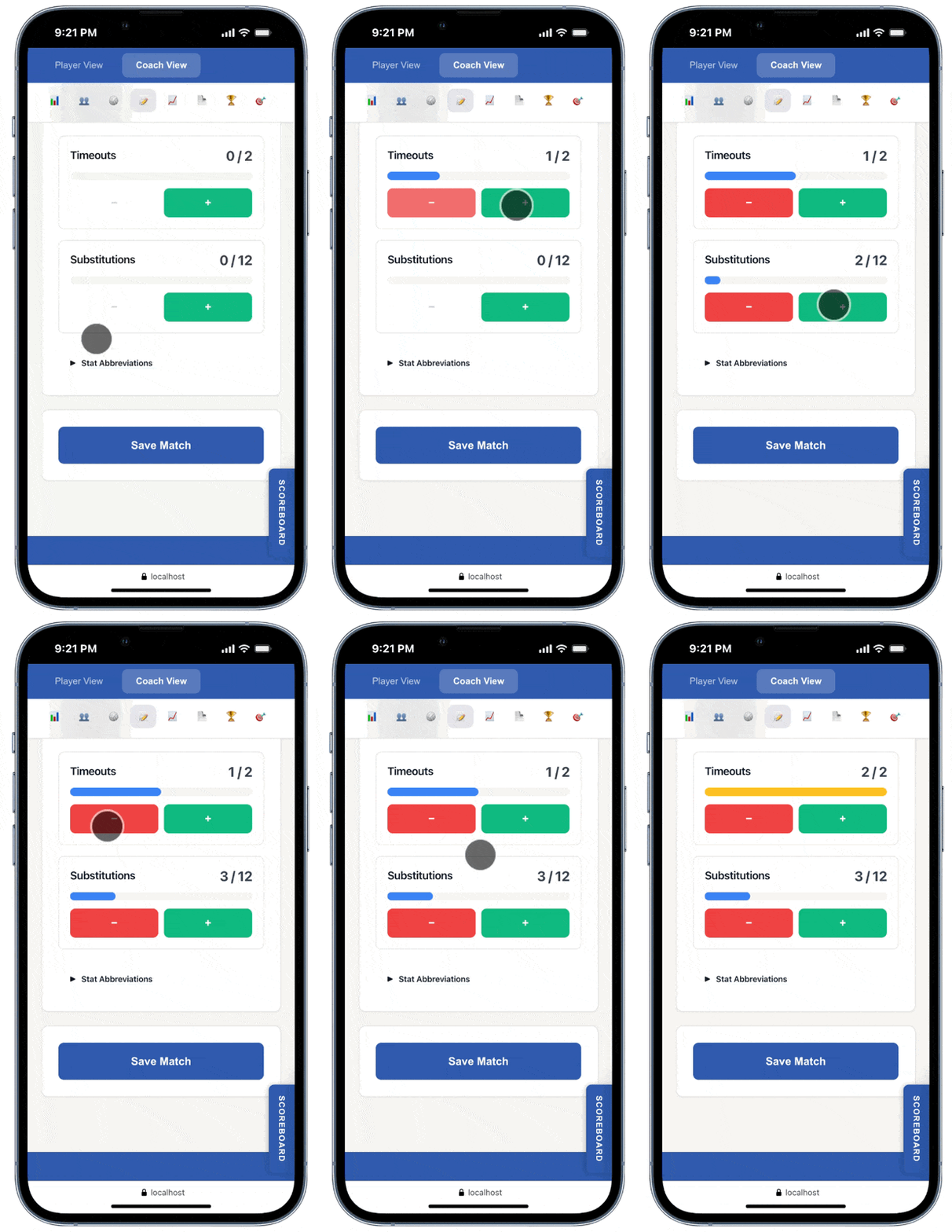
Step 4: Track Timeouts and Substitutions (Optional)
You can optionally track how many timeouts and substitutions your team used during the match. Use the "+" and "-" buttons to adjust the counts.
Step 5: Review and Save
Before saving, review all the information you've entered:
- Match details (opponent, date, season)
- Set scores
- Player statistics
When everything looks correct, click the "Save Match" button at the bottom of the page.
Offline Recording
If you're recording a match without an internet connection, VballStat will automatically save your data locally. When you reconnect to the internet, you can select the option to have the match sync'd to the cloud.
You'll see an offline indicator when you're not connected, and a success message once the data has been synced.
Editing a Match
To edit a previously recorded match:
- Navigate to your team's match history
- Find the match you want to edit
- Click the "Edit" icon
- Make your changes
- Click "Save Match" to update the record
Tips for Efficient Recording
- Use Light Mode during live matches: It's faster and captures the most important stats
- Add detailed stats later: You can edit the match after the game to add full statistics
- Use the undo button: Don't worry about mistakes - you can always undo the last action
Common Questions
Q: Do I need to fill in every statistic for every player?
A: No, you only need to record the stats that occurred during the match. Players with zero stats in certain categories will simply show zeros.
Q: Can I record stats for a match that already happened?
A: Yes, simply select the correct date when entering match details.
Q: What happens if I lose internet connection while recording?
A: The app works offline and will save your data locally. It will automatically sync when you reconnect. Just be sure to not navigate away from the record match view.
Q: Can multiple people record stats for the same match?
A: It's best to have one person record the match to avoid duplicate or conflicting data. You can always edit the match later to add or correct information.