The Schedule feature helps you plan and organize your team's upcoming matches throughout the season. You can add match details, track home and away games, assign matches to tournaments, and seamlessly transition from scheduled matches to recording actual game stats.
Accessing the Schedule
There are two ways to access your team's schedule:
- From the Coach Dashboard: Click the "📅 Schedule" quick action card
- From the Sidebar: Navigate to your team, select a season, then choose Schedule from the season options
Note: You must have at least one season created before you can use the schedule feature.
Adding a Scheduled Match
To add a new match to your schedule:
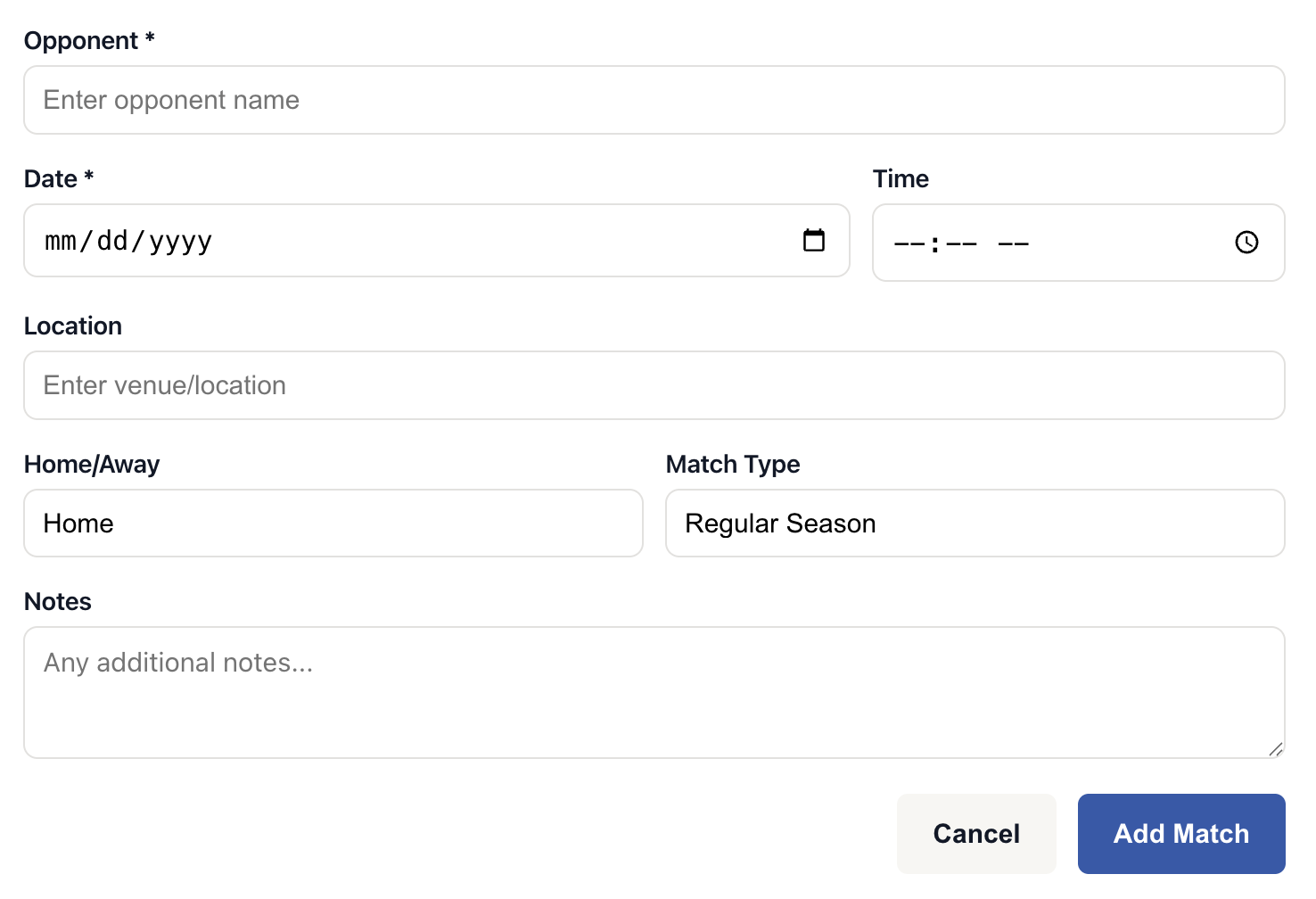
- Click the "+ Add Match" button in the top-right corner
- Fill in the match details (see fields below)
- Click "Add Match" to save
Match Details Fields
Required Fields
- Opponent * - The name of the opposing team
- Date * - The date the match will be played
Optional Fields
- Time - The start time of the match (e.g., 6:00 PM)
- Location - The venue or address where the match will be played
- Home/Away - Whether it's a home game, away game, or at a neutral location
- Home - Playing at your team's venue
- Away - Playing at the opponent's venue
- Neutral - Playing at a third-party location
- Match Type - The type of match being played
- Regular Season - Standard league/season matches
- Tournament - Part of a tournament event
- Scrimmage - Practice match (non-competitive)
- Playoff - Postseason/playoff match
- Tournament - If Match Type is "Tournament", you can select which tournament this match belongs to (only shows tournaments created for the current season)
- Notes - Any additional information about the match (special instructions, uniform requirements, etc.)
Viewing Your Schedule
Your schedule is organized into two sections:
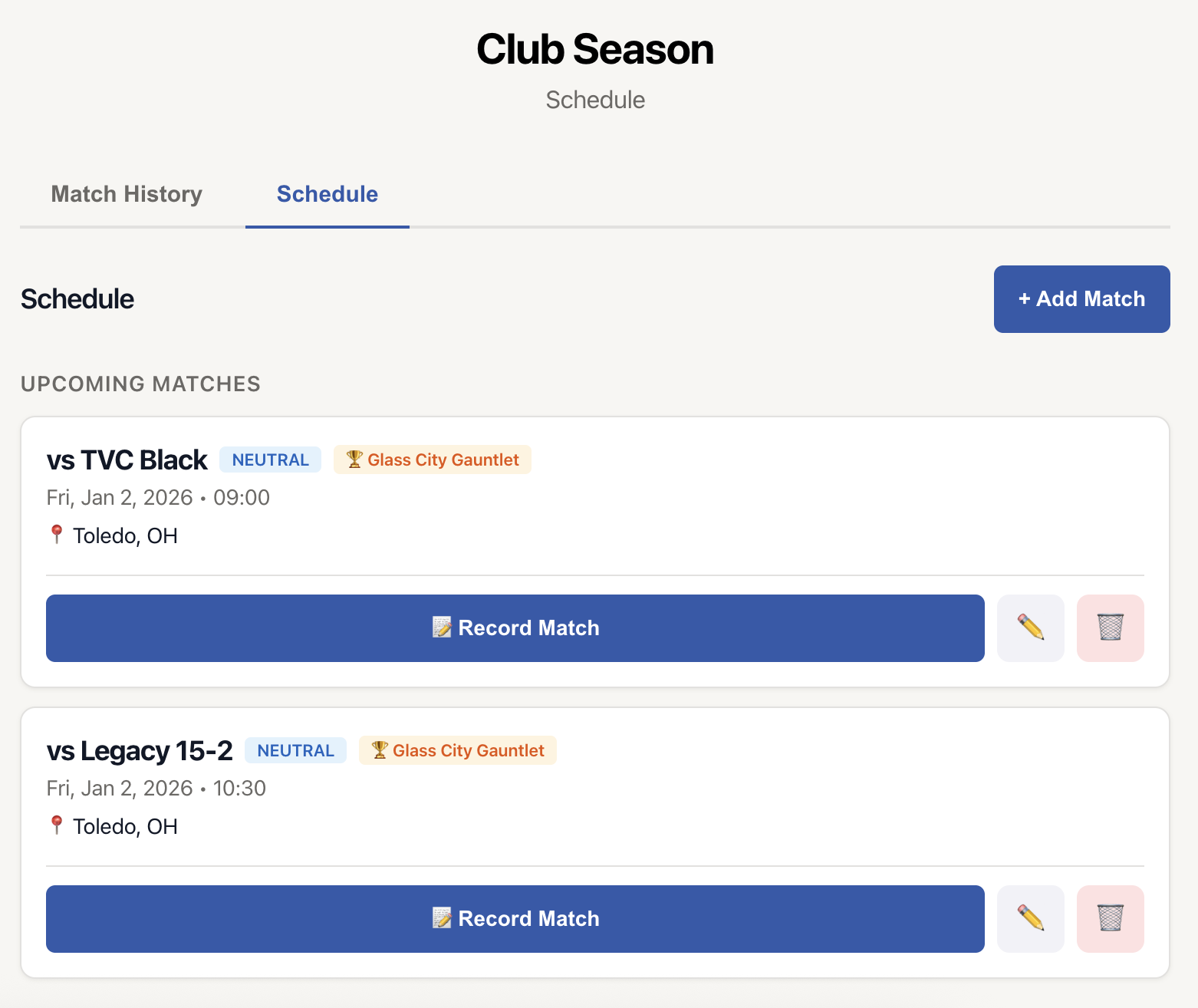
Upcoming Matches
Matches scheduled for today or future dates appear in the "Upcoming Matches" section. These are sorted chronologically with the soonest match appearing first.
Each match card displays:
- Opponent name
- Home/Away indicator (color-coded badge: green for home, blue for away)
- Tournament name (if applicable, shown with a 🏆 icon)
- Date and time
- Location (with 📍 icon)
- Notes (if added)
- Action buttons (Record Match, Edit, Delete)
Past Scheduled (Not Recorded)
Matches with dates in the past that haven't been recorded yet appear in this section. These are displayed with reduced opacity to distinguish them from upcoming matches.
This section helps you identify matches that were scheduled but may not have been played or recorded yet, so you can either record them or remove them from the schedule.
Recording a Match from the Schedule
One of the most powerful features of the schedule is the ability to seamlessly transition from a scheduled match to recording its stats:
- Find the scheduled match in your list
- Click the "📝 Record Match" button on the match card
- The match recording interface opens with pre-filled information:
- Opponent name
- Match date
- Location
- Tournament association (if applicable)
- Begin recording stats for the match
Tip: This saves time by automatically filling in match details, ensuring consistency between your schedule and recorded matches.
Editing a Scheduled Match
To update match details:
- Click the ✏️ Edit button on the match card
- The add/edit form appears with all current information pre-filled
- Make your changes
- Click "Update Match" to save
- Click "Cancel" to discard changes
Deleting a Scheduled Match
To remove a match from your schedule:
- Click the 🗑️ Delete button on the match card
- A confirmation dialog appears asking you to confirm the deletion
- Click "Delete" to permanently remove the match
- Click "Cancel" to keep the match
Warning: Deleting a scheduled match is permanent and cannot be undone.
Tournament Matches
When scheduling tournament matches:
- Make sure you've created the tournament in your season first
- When adding a match, select "Tournament" as the Match Type
- Choose the specific tournament from the dropdown menu
- The match will now be associated with that tournament
Tournament matches display a special 🏆 badge with the tournament name on the match card.
Note: If you select "Tournament" as the match type but haven't created any tournaments yet, you'll see a message: "No tournaments created for this season yet"
Best Practices
Add Matches in Advance
Schedule your matches as soon as you know the dates and opponents. This helps with team planning and ensures you don't forget to record stats for any games.
Include All Details
While only opponent and date are required, adding time, location, and notes makes the schedule more useful for you, your team, and parents/supporters who might check the schedule.
Update as Changes Occur
If match details change (time, location, etc.), edit the scheduled match immediately to keep everyone informed.
Clean Up Past Matches
Periodically review the "Past Scheduled (Not Recorded)" section. Either record these matches (if they were played) or delete them (if they were cancelled).
Use Tournament Associations
When scheduling tournament matches, always associate them with the correct tournament. This helps with later analysis and reporting of tournament performance.
Tips and Tricks
Quick Recording Workflow
The fastest way to record a match:
- Add it to the schedule ahead of time
- On game day, go to Schedule
- Click "Record Match" on the scheduled match
- Start tracking stats immediately with pre-filled details
Home vs. Away Indicators
The color-coded home/away badges make it easy to quickly see which games are home games when scanning your schedule:
- Green badge = Home game
- Blue badge = Away game
- Gray badge = Neutral location
Common Scenarios
Scheduling a Regular Season Match
- Click "+ Add Match"
- Enter opponent: "Lincoln High School"
- Set date and time
- Enter location: "Home Gym"
- Select Home/Away: "Home"
- Keep Match Type as "Regular Season"
- Add notes if needed
- Click "Add Match"
Scheduling a Tournament Day
- First, create the tournament (if you haven't already)
- For each tournament match:
- Click "+ Add Match"
- Enter opponent
- Set the tournament date and time for that specific match
- Enter the tournament venue
- Select Home/Away (usually "Neutral" for tournaments)
- Select Match Type: "Tournament"
- Select your tournament from the dropdown
- Add notes (e.g., "Pool Play - Court 2")
- Click "Add Match"
- Repeat for each tournament match
What if a Match Gets Cancelled?
- Find the match in your schedule
- Click the 🗑️ Delete button
- Confirm deletion
The match is removed from your schedule and won't clutter your past matches section.
What if Match Time Changes?
- Find the match in your schedule
- Click the ✏️ Edit button
- Update the time (and any other changed details)
- Click "Update Match"
Troubleshooting
Can't Access Schedule
Problem: The Schedule option is grayed out or not visible.
Solution: Make sure you've created at least one season for your team. The schedule is season-specific, so you need a season first.
Tournament Not Showing in Dropdown
Problem: When selecting "Tournament" as match type, my tournament doesn't appear in the dropdown.
Solution: Ensure the tournament is created for the same season you're currently viewing. Tournaments are season-specific and only tournaments from the current season will appear.
Match Not Appearing After Adding
Problem: I added a match but don't see it in the list.
Solution: Check the date you entered. If the match date is in the past, it will appear under "Past Scheduled (Not Recorded)" instead of "Upcoming Matches".
Empty Schedule After Recording
Problem: After I record a scheduled match, it disappears from my schedule.
Solution: This is expected behavior. Once a match is recorded with actual stats, it's removed from the schedule and moves to your Match History. The schedule only shows matches that haven't been played/recorded yet.