The Lineups feature helps you create, save, and manage different player rotations for your volleyball team. Whether you're planning your starting six, tournament rotations, or specialized formations, this tool makes it easy to visualize and organize your court positions.
What are Lineups?
In volleyball, a lineup is the arrangement of your six players on the court in their designated positions (positions 1-6). The Lineups feature allows you to:
- Save multiple lineup configurations for different scenarios
- Visualize player positions on a volleyball court diagram
- Quickly reference saved lineups during games
- Plan rotations and player combinations in advance
- Add notes to remember why you created each lineup
Accessing Lineups
To access the Lineups feature:
- Navigate to your team dashboard
- Select Lineups from your team navigation menu
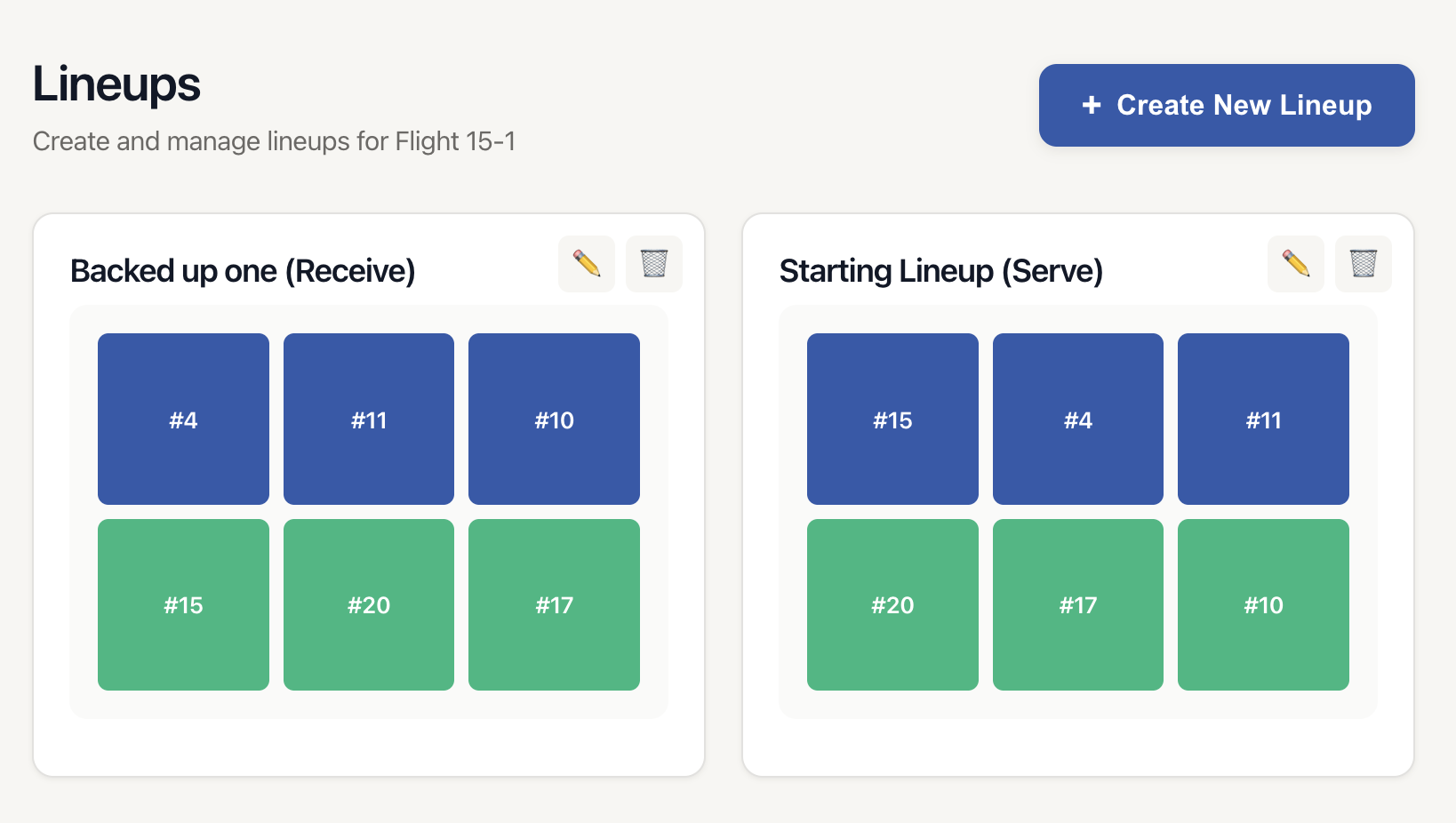
- You'll see a grid of all your saved lineups
Creating a New Lineup
Step 1: Start a New Lineup
- Click the "+ Create New Lineup" button
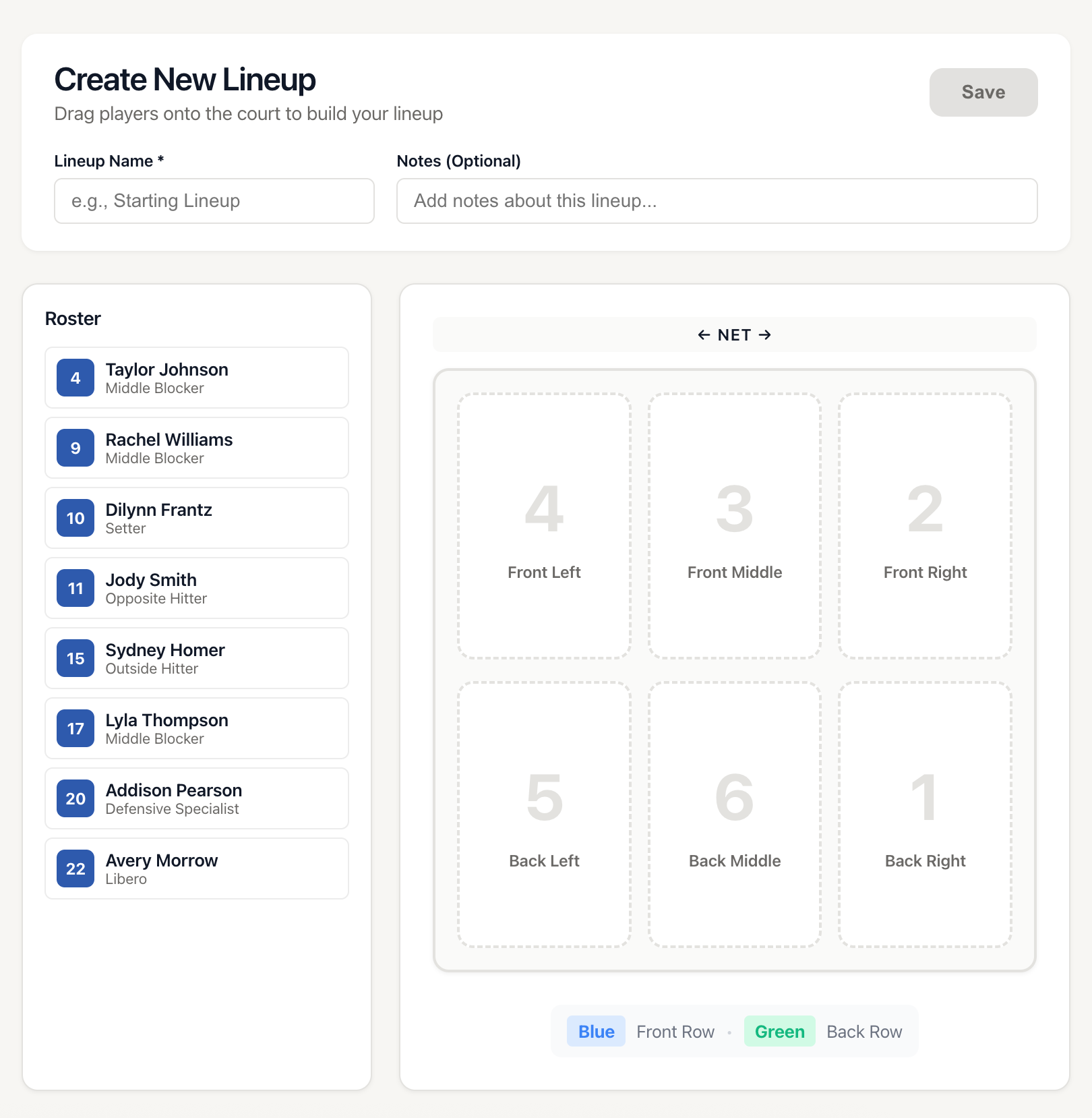
- You'll be taken to the lineup editor
Step 2: Name Your Lineup
- Enter a descriptive name in the "Lineup Name" field (required)
- Examples: "Starting Rotation", "Defensive Lineup", "Tournament Setup"
Step 3: Add Notes (Optional)
Use the Notes field to add context about when to use this lineup or any special considerations. For example: "Use when facing tall blockers" or "Best for serve receive".
Step 4: Add Players to Positions
On Desktop:
- Look at the roster panel on the left side
- Click and drag a player from the roster
- Drop them onto one of the six court positions
- Players in the lineup will appear grayed out in the roster
- You can only assign each player to one position at a time
On Mobile:
- Tap on a court position (you'll see position numbers 1-6)
- A player selection modal will appear
- Tap the player you want to assign to that position
- The modal closes and the player appears in that position
Step 5: Remove Players from Positions
- Click the small "×" button in the top-right corner of any filled position
- The player will be removed and become available in the roster again
Step 6: Save Your Lineup
- Click the "Save" button in the top-right corner
- You'll be returned to the main Lineups view
- Your new lineup will appear in the grid
Note: The Save button is disabled until you enter a lineup name.
Viewing Your Saved Lineups
The main Lineups view displays all your saved lineups as cards in a grid. Each card shows:
- Lineup Name: The title you gave the lineup
- Notes Preview: A snippet of your notes (if added)
- Mini Court Diagram: A small visual preview showing which positions are filled and with which jersey numbers
- Edit Button (✏️): Click to modify the lineup
- Delete Button (🗑️): Click to remove the lineup
Editing a Lineup
- Click anywhere on a lineup card OR click the edit button (✏️)
- The lineup editor opens with all current information loaded
- Make your changes:
- Update the name or notes
- Drag players to different positions
- Add or remove players
- Click "Save" to update the lineup
Tip: You can rearrange players between positions by dragging them from their current position to a new one.
Deleting a Lineup
- Click the delete button (🗑️) on any lineup card
- A confirmation dialog will appear
- Confirm the deletion
- The lineup will be permanently removed
Warning: Deleting a lineup cannot be undone.
Common Lineup Scenarios
Starting Rotation
Create your primary lineup with your strongest starting six. Name it "Starting Rotation" and use notes like "Best overall combination for serve receive and offense."
Defensive Specialist Lineup
Build a lineup focused on defense with your best passers in back row positions. Name it "Defensive Setup" with notes about when to use it (e.g., "Against powerful serving teams").
Multiple Setter Rotations
If you use a 6-2 system with two setters, create separate lineups showing each setter's starting position. Name them "Setter 1 Rotation" and "Setter 2 Rotation."
Tournament Pools
Create different lineups for different opponents you'll face at tournaments. For example, "Pool A - Team 1", "Pool A - Team 2", etc.
Practice Formations
Save practice-specific lineups for drills or scrimmages. Name them clearly like "Blocking Drill Formation" or "Serve Receive Practice."
Best Practices
Use Descriptive Names
Instead of "Lineup 1", use names that describe when or why to use the lineup: "Strong Serve Receive", "Tournament Starting 6", "Playoff Rotation".
Add Contextual Notes
Use the notes field to capture important information:
- When to use this lineup ("Against tall blockers", "For close games")
- Key strengths ("Best passing combination", "Maximum height at net")
- Rotation strategy ("Start with setter back row")
- Player combinations ("Sarah and Emma work well opposite each other")
Create Multiple Versions
Don't limit yourself to one lineup. Create variations for different scenarios:
- Plan A (primary lineup)
- Plan B (if Plan A isn't working)
- Defensive focus
- Offensive focus
- When a key player is absent
Keep Lineups Updated
As your team develops and player skills change, update your lineups to reflect current strengths and combinations.
Reference During Games
Pull up your saved lineups on your phone or tablet during matches for quick reference when making substitution decisions or rotation adjustments.
Tips and Tricks
Quick Player Swaps
To swap two players' positions on desktop, drag the first player to a temporary empty position, then drag the second player to the first player's original position, then move the first player to the second player's spot.
Building Around a Key Player
Start by placing your most important player (setter, star hitter, etc.) in their ideal position, then build the rest of the lineup around them.
Print or Screenshot Lineups
Take screenshots of your lineups to:
- Print and post in the locker room
- Share with assistant coaches
- Keep in your coaching binder
- Send to players before games
Test Combinations at Practice
Create experimental lineups to test during practice, then save the ones that work well for use in actual matches.
Mobile Player Selection
On mobile, you can quickly clear a position by selecting it and then choosing "Remove Player" at the top of the player selection modal.
Understanding the Court Diagram
Court Orientation
The court diagram always shows the view from your team's perspective. The "← NET →" label at the top indicates the net location. The front row is closest to the net (top of diagram), and the back row is farthest from the net (bottom of diagram).
Color Coding
Different colors help distinguish front and back row players:
- Blue gradient: Front row positions (can attack and block at the net)
- Green gradient: Back row positions (cannot attack above net height)
Drag-and-Drop Visual Feedback
When dragging players on desktop:
- Empty positions highlight when you hover over them
- "Drop here" text appears to confirm you're in the right spot
- Filled positions show the player's jersey number in a circle
- Player names and positions display below the number
Troubleshooting
Can't Save a Lineup
Problem: The Save button is grayed out.
Solution: Make sure you've entered a lineup name in the "Lineup Name" field. This is required.
Player Won't Drag
Problem: On desktop, a player in the roster panel won't drag.
Solution: This player is already in the lineup. Remove them from their current position first, then they'll be available to drag again.
Lost My Changes
Problem: I made changes but they weren't saved.
Solution: Changes are only saved when you click the "Save" button. If you navigate away without saving, changes will be lost.
Mobile Drag Not Working
Problem: I can't drag players on my phone.
Solution: On mobile, dragging is disabled. Instead, tap on a position number to open the player selection modal, then tap the player you want to assign.
No Players Available
Problem: "No players in roster" appears.
Solution: You need to add players to your team roster first. Go to your team dashboard, access the Roster section, and add your players.
Can't Find a Saved Lineup
Problem: A lineup I created is missing.
Solution: Lineups are sorted by most recently updated. Scroll through the grid to find older lineups. If you deleted it, it cannot be recovered.