Once you've created your VBall Stats account, the next step is to add your first player. This guide will walk you through the process of creating a player profile to start tracking volleyball performance.
How to Add a Player
-
Access the Dashboard
- After signing in, you'll be taken to your dashboard
- If you don't have any players yet, you'll see a button to add your first player
-
Click "Add Player"
-
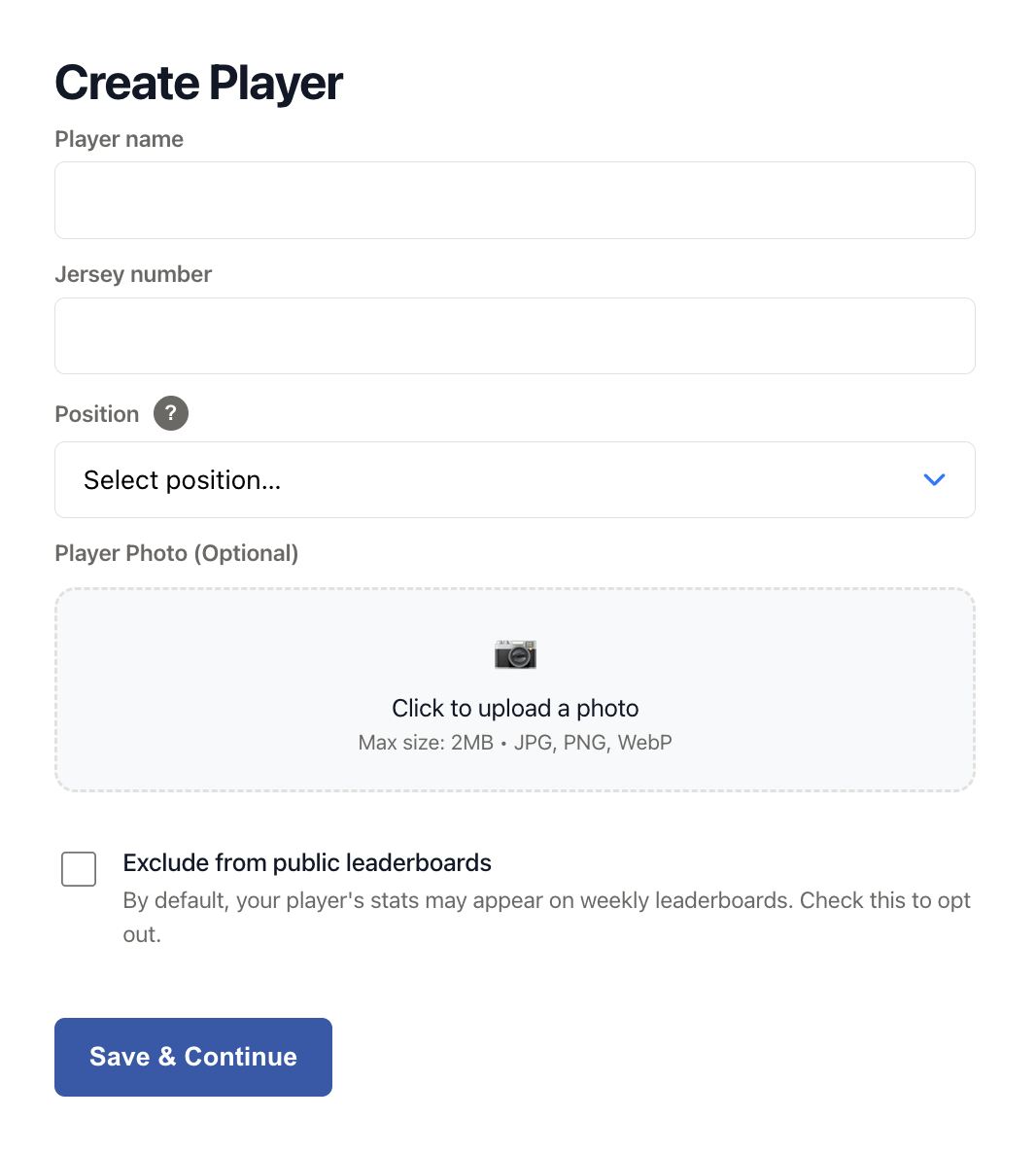
Enter Player Information
- Name: Enter the player's full name
- Jersey Number (optional): Add their jersey number if applicable
- Position (optional): Select the player's primary position (Setter, Outside Hitter, Middle Blocker, Opposite, Libero, Defensive Specialist)
- Player Photo: Upload an image of your player (optional)
-
Click "Save & Continue"
What Happens Next?
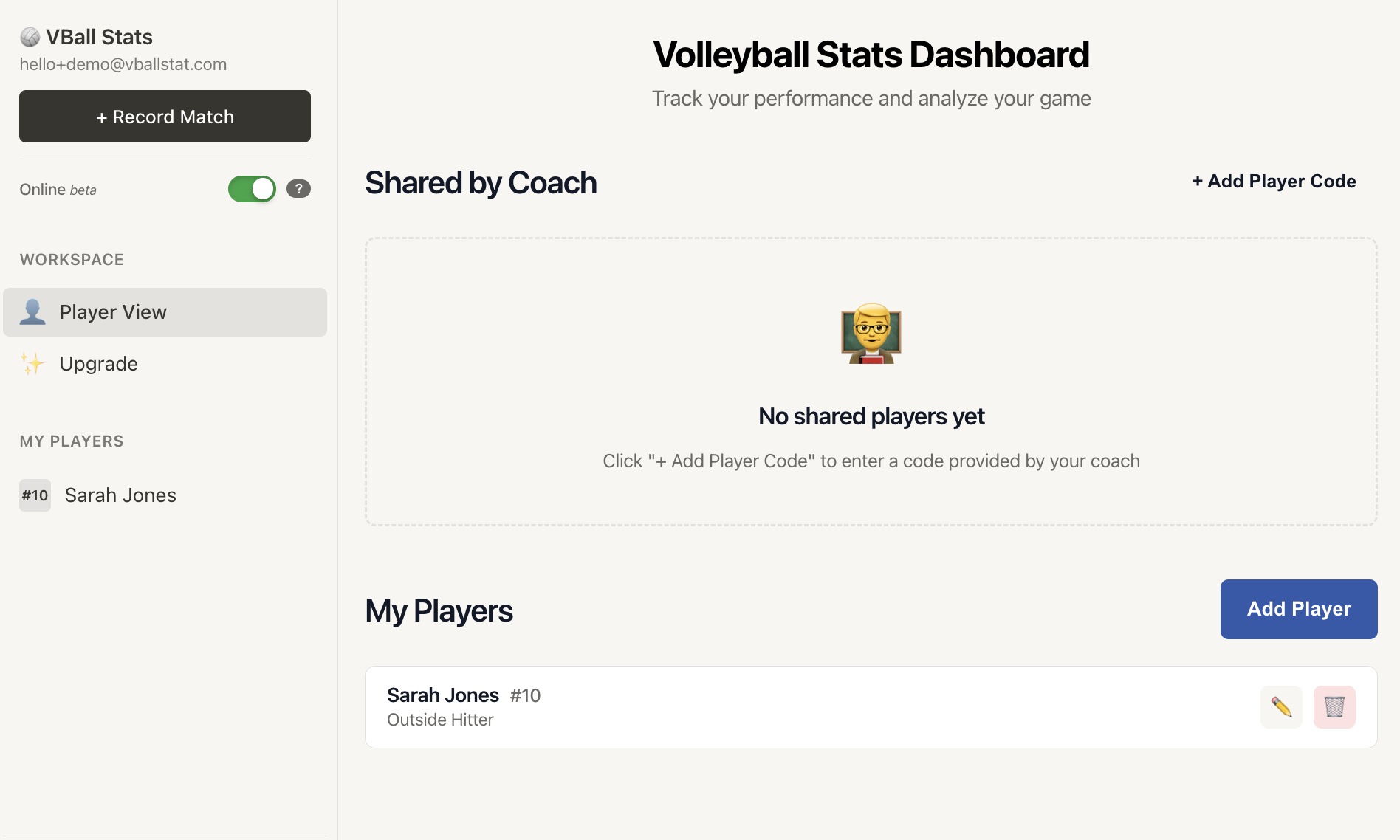
After creating your first player, you'll see this appear in the "My Players" section of your dashboard. Once they've been created you can:
- Create a Season: Set up your first season to start tracking matches
- View Stats: Access detailed performance statistics (once you have match data)
- Edit Profile: Update player information at any time
- Add More Players: Create additional player profiles (Free accounts can only create 1 player, Pro/Coach accounts can create unlimited players)
Editing Player Information
You can update player information at any time:
- Navigate to the player's profile
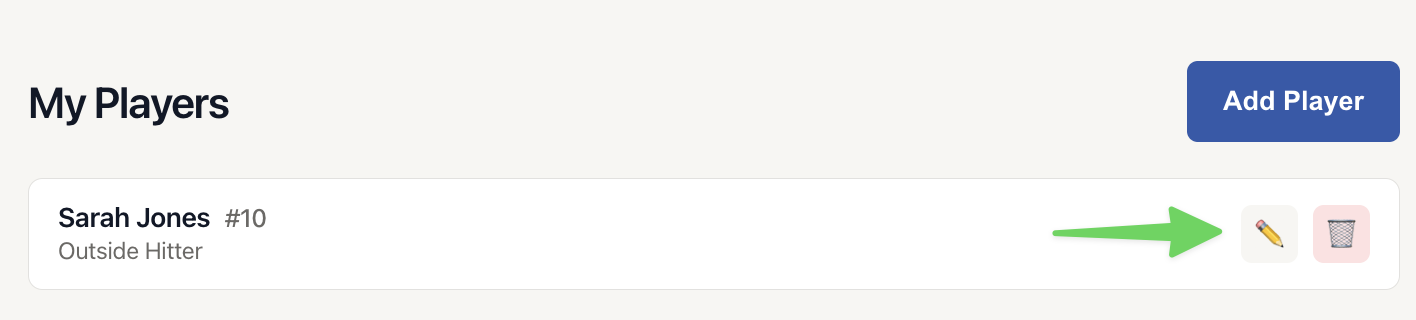
- Click the pencil icon to edit your player profile
- Update any information
- Click "Save Changes"
Switching Between Players
If you're tracking multiple players:
- Use the sidebar navigation to view all your players from the desktop, or click the player from the My Player list, or use the dropdown to select a player on mobile devices.
- Each player has their own seasons, matches, and statistics
Desktop View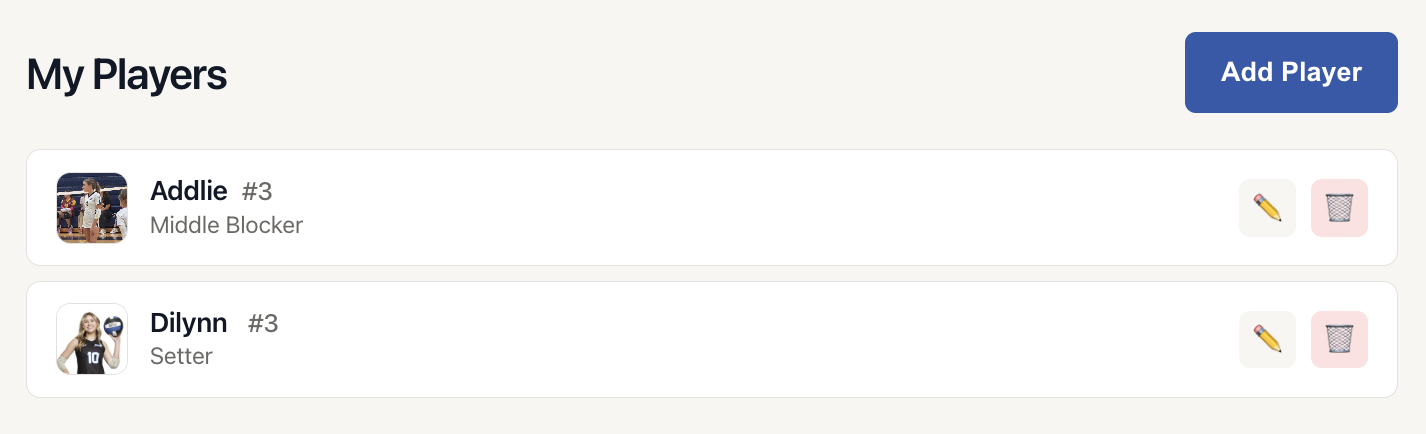 |
Mobile View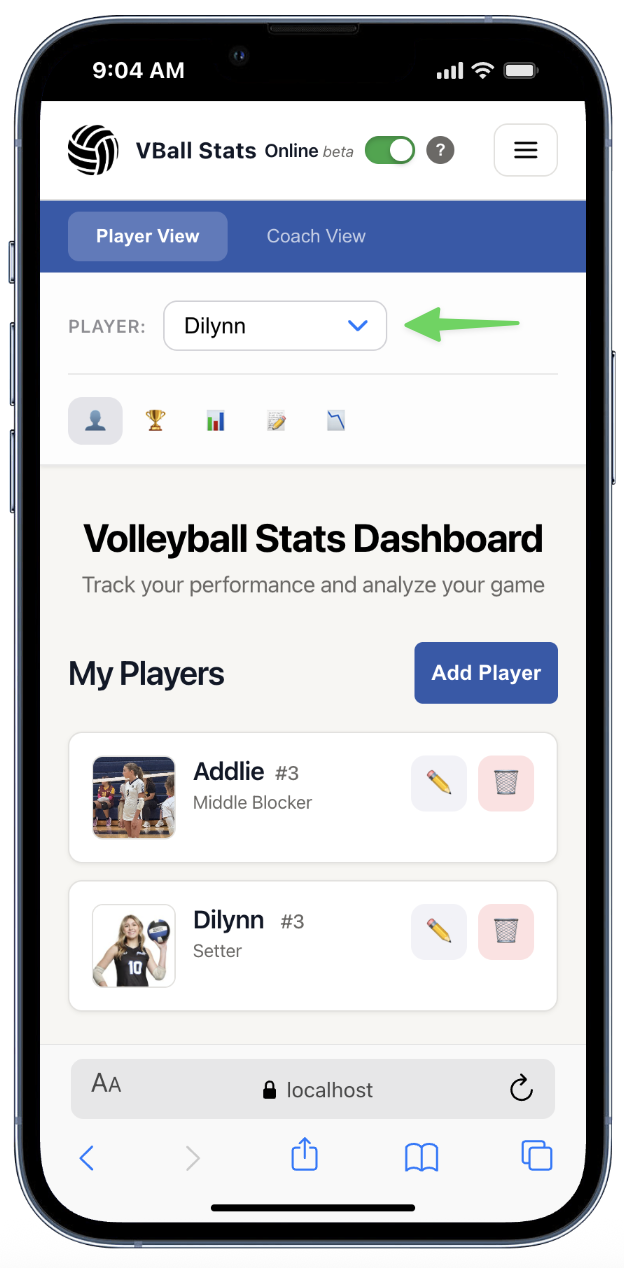 |
Tips for Getting Started
✓ Use full names - This helps keep things organized, especially when tracking multiple players
✓ Add positions - While optional, this helps with position-specific analytics later
✓ Start with one player - Get comfortable with the system before adding more players
✓ Create a season next - After adding a player, create your first season to start recording matches
Common Questions
Can I delete a player?
Yes, you can delete a player profile at any time from the My Players list, by clicking on the trashcan icon. Note that this will also delete all associated seasons and match data.
Can I change a player's name later?
Yes, player information can be updated at any time through the Edit Player function.
How many players can I add?
- Free Account: 1 players
- Pro Account: Unlimited players
- Coach Account: Unlimited players plus team management
Can I track players across different teams?
Yes, each player can have multiple seasons, and each season can be associated with different teams or clubs.